Help us improve your experience.

Let us know what you think.

Do you have time for a two-minute survey?


Contact Customer Support

You can create a support ticket on the Juniper Mist portal. The Juniper Mist Support team will contact you to help resolve your problem. If needed, you can request a Return Material Authorization (RMA).

Before you begin, ensure that you have the following information:

  • The MAC address of the faulty AP

  • The exact LED blink pattern seen on the AP (or a short video of the blinking pattern)

  • The system logs from the AP

To create a support ticket:

  1. Click the ? (question mark) icon in the top-right corner of the Juniper Mist portal.
  2. Select Support Tickets from the drop-down menu.
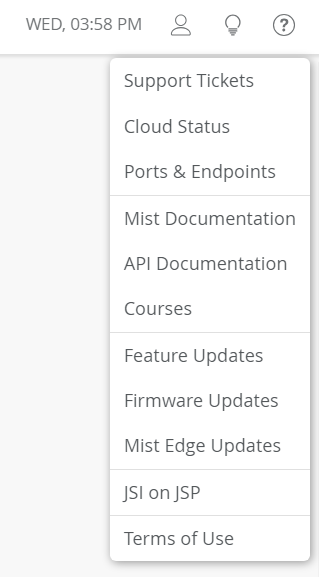
    Dropdown menu with options for support tickets, cloud status, documentation, courses, feature updates, and terms of use.
  3. Click Create a Ticket in the top-right corner of the Support Tickets page.

    Support Tickets interface with table headers for ticket details, a filter for time range, and a Create a Ticket button.
  4. Select the appropriate ticket type depending on the severity of your problem.
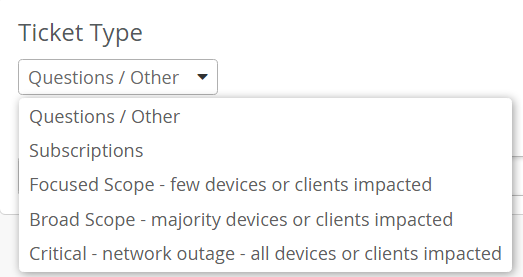
    Dropdown menu for Ticket Type with options: Questions or Other, Subscriptions, Focused Scope, Broad Scope, Critical Network Outage.
    Note:

    Selecting Questions/Other will open a search box and redirect you to available documentation and resources related to your issue. If you cannot resolve your issue by using the suggested resources, click I still need to create a ticket.
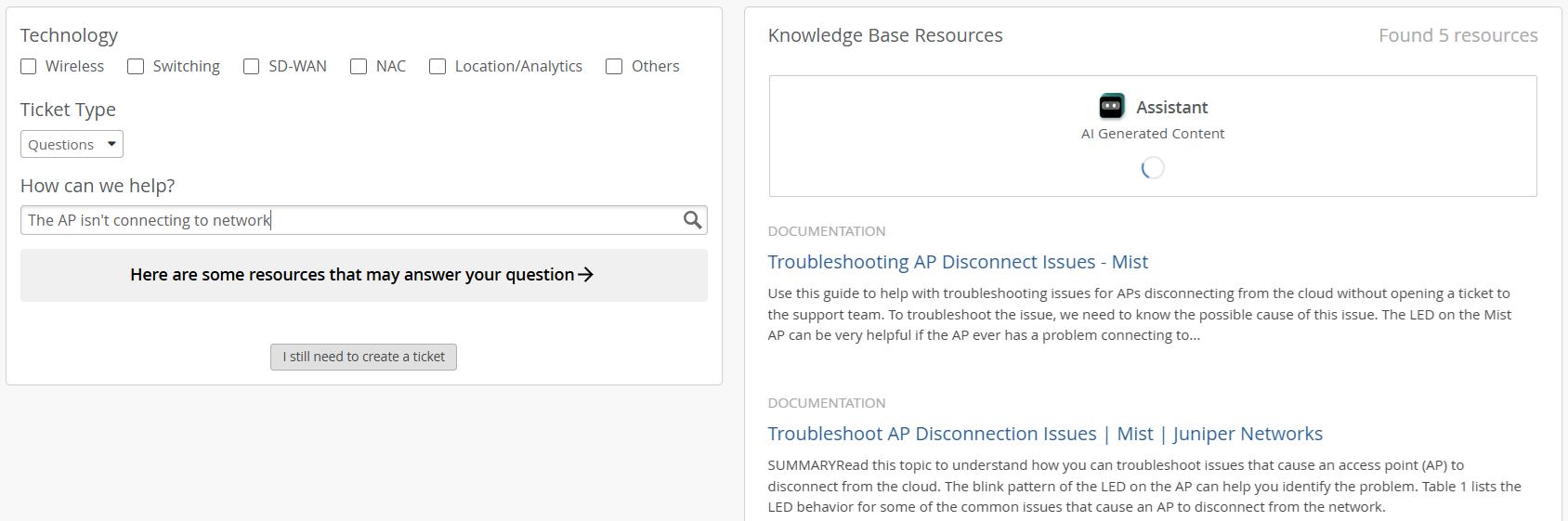
    Support ticket interface for network issues with technology checkboxes, ticket type dropdown, issue input field, suggested resources, knowledge base links, AI Assistant, and ticket creation button.
  5. Enter a ticket summary, and select the sites, devices, or clients that are impacted.

    If you are requesting an RMA, select the impacted device.
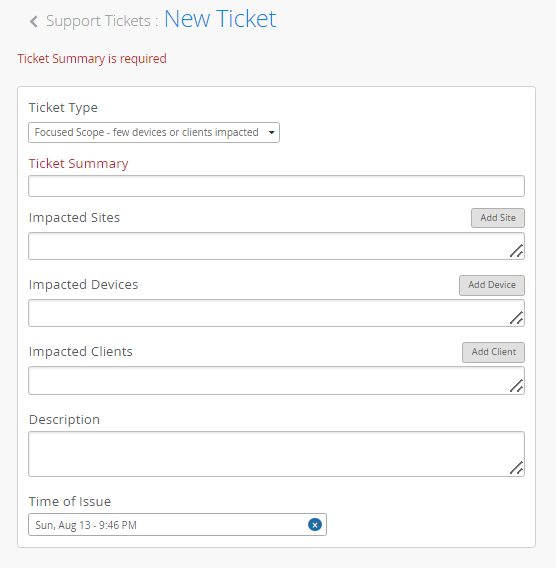
    New Ticket form with fields for Ticket Type, Ticket Summary, Impacted Sites, Devices, Clients, Description, and Time of Issue. Red error: Ticket Summary required.
  6. Enter a description to explain the issue in detail.

    Provide the following information:

    • The MAC address of the device

    • The exact LED blink pattern seen on the device

    • The system logs from the device

    Note:

    To share device logs:

    1. Navigate to the Access Points page in the Juniper Mist portal. Click the impacted device.

    2. Select Utilities > Send AP Log to Mist in the top right corner of the device page.

    It takes at least 30 seconds to 1 minute to send the logs. Do not reboot your device in that interval.

  7. (Optional) You can provide any additional information that may help to resolve the issue, such as:
    • Is the device visible on the connected switch?

    • Is the device receiving power from the switch?

    • Is the device receiving an IP address?

    • Is the device pinging on the Layer 3 (L3) gateway of your network?

    • Have you already followed any troubleshooting steps?

  8. Click Submit.