
Step 2: Up and Running
Managed Devices
You've followed the manual steps or you've used ZTP to get your devices installed with their management IP addresses and device agents. Plus, your switches are registered with the Apstra server. But they're not quite ready for deployment. Just after being added, devices are placed into the Out-of-Service Quarantine state. To place them under full control of the system, they need to be acknowledged.
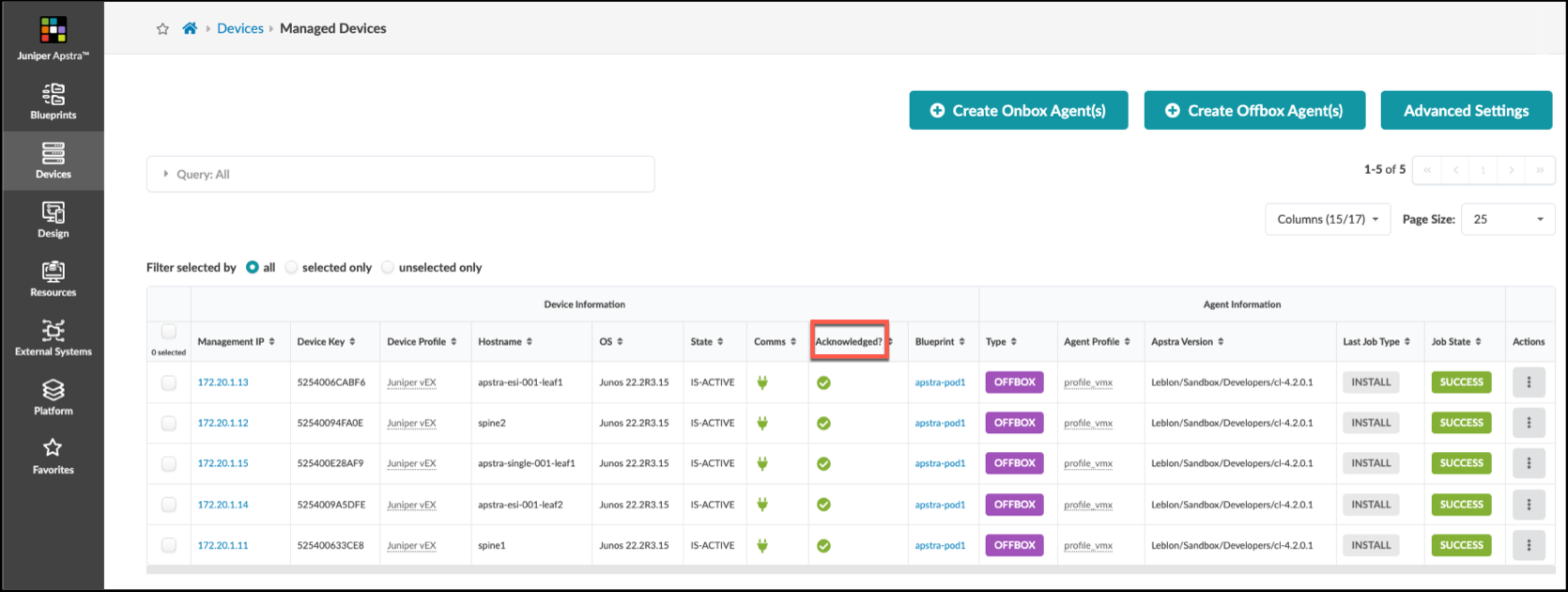
Once you've acknowledged your devices, you can drill into numerous aspects of the device’s status. There are additional tools to show the agent state, allow us to work with the Pristine Config and to view device telemetry.
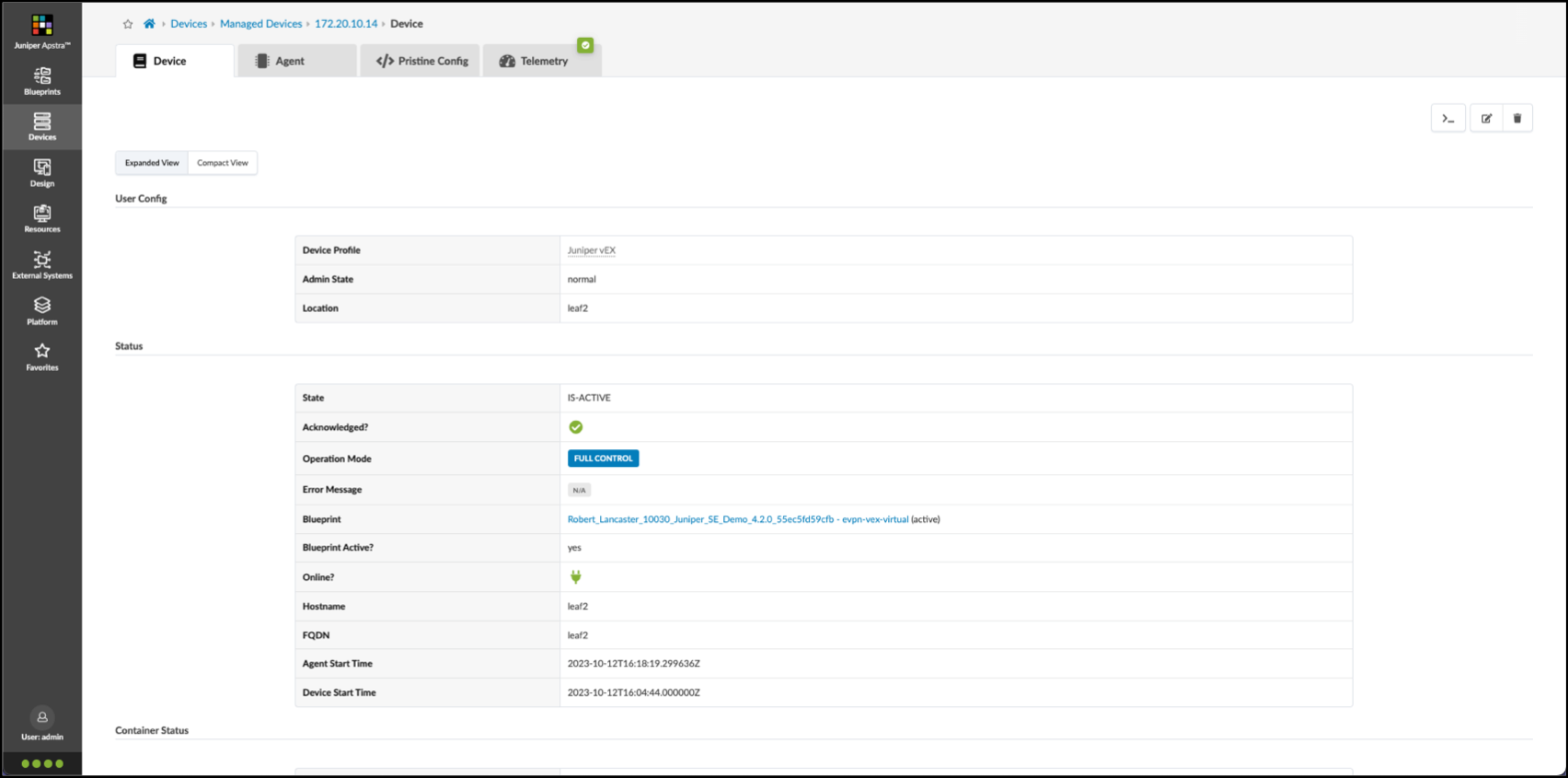
Use of the tools in the Managed Devices view is covered in the Managed Devices section of the Juniper Apstra User Guide.
ZTP can initiate NOS upgrades, if needed. But what do you do if you need to upgrade the software after the devices are under control of the system? The good news is that the Managed Devices page hosts a tool that can keep your NOS versions fresh and secure. This is critical for the network to operate properly. It's also a convenient manner to deal with any issues that may be encountered that require you to perform an update. The NOS management tool offers flexibility for image storage location and visibility into installation progress.
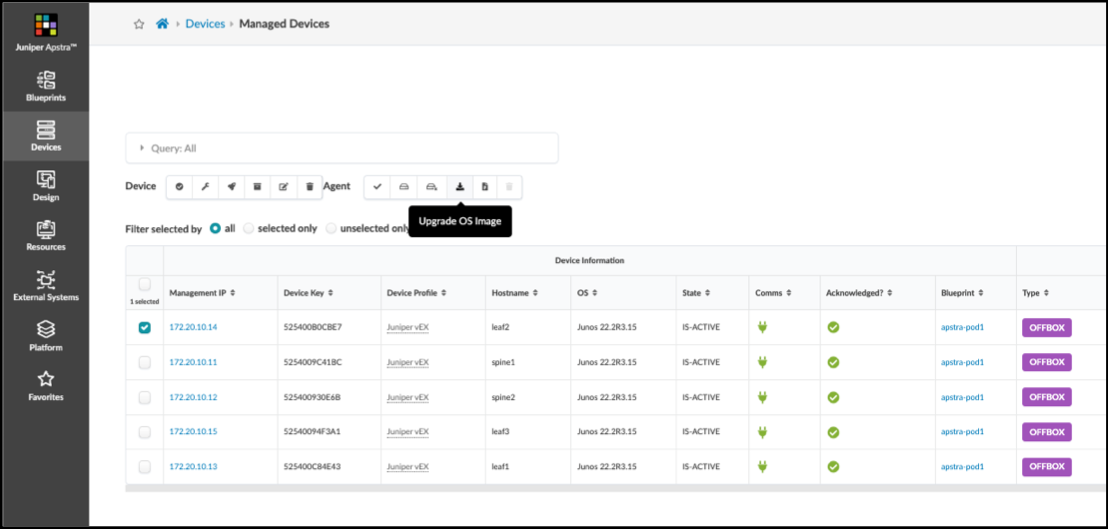
Upgrading the NOS of a device from the Managed Devices view is described in detail in the Upgrade Device NOS section of the user guide.