Help us improve your experience.

Let us know what you think.

Do you have time for a two-minute survey?


Install Apstra on ESXi

These instructions are for installing Apstra software on an ESXi hypervisor. For information about using ESXi in general, refer to VMware's ESXi documentation.

  1. Confirm that you're running one of the Supported Hypervisors and Versions and that the VM has the Required Server Resources.
  2. Apstra software is delivered pre-installed on a single VM. The same Apstra VM image is used for installing both the Apstra controller and Apstra workers. As a registered support user, download the Apstra VM Image for VMware ESXi (OVA) from Juniper Support Downloads.

    Download software image file with options: Click Here to download to localhost or use Direct URL with parameters. Copy button for URL. Juniper Networks logo at top.
  3. Log in to vCenter, right-click your target deployment environment, then click Deploy OVF Template.
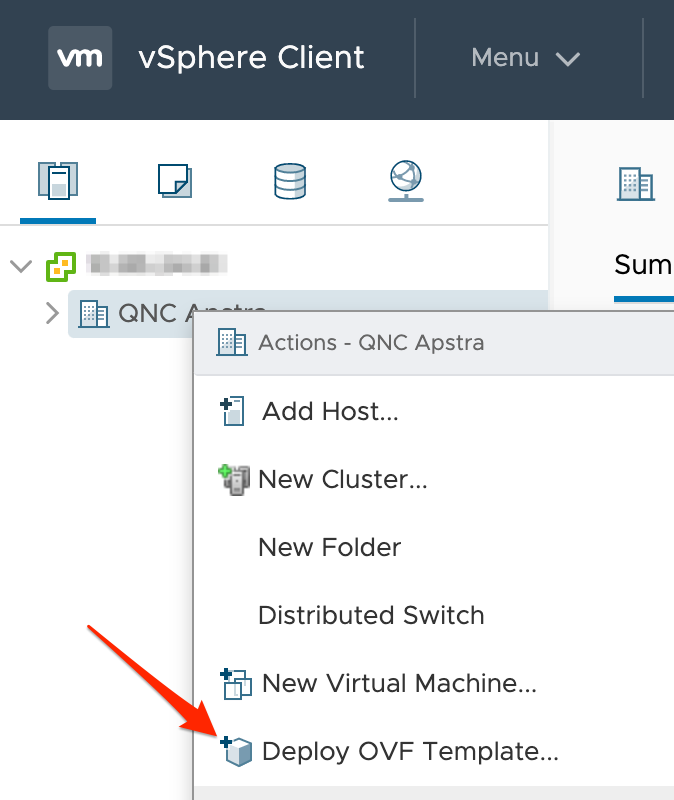
    Screenshot of VMware vSphere Client interface showing Actions menu for QNC Apstra with Deploy OVF Template option highlighted.
  4. Specify the URL or local file location for the OVA file you downloaded, then click Next. (Screenshot below is from a previous Apstra version.)
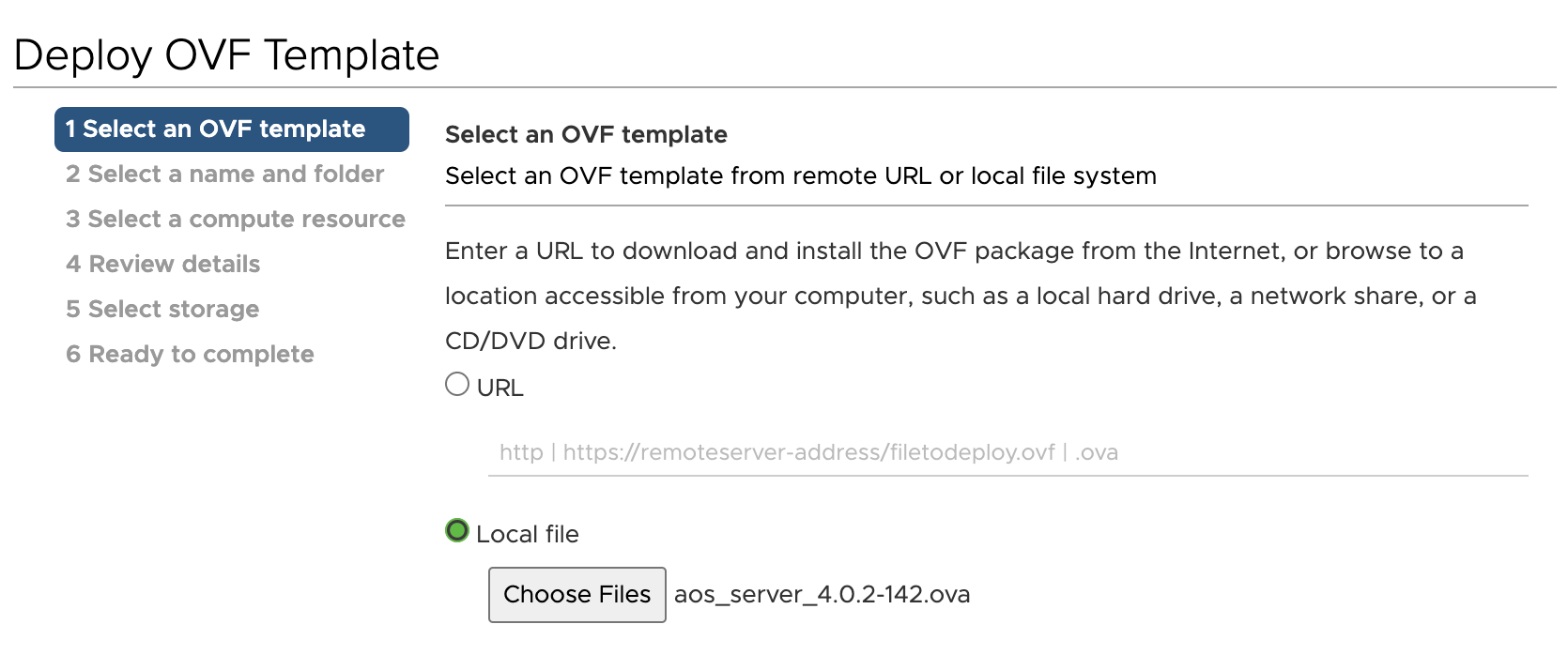
    Step 1 of Deploy OVF Template wizard in VMware vSphere. Local file option selected with file aos_server_4.0.2-142.ova.
  5. Specify a unique name and target location for the VM, then click Next. (Screenshot below is from a previous Apstra version.)
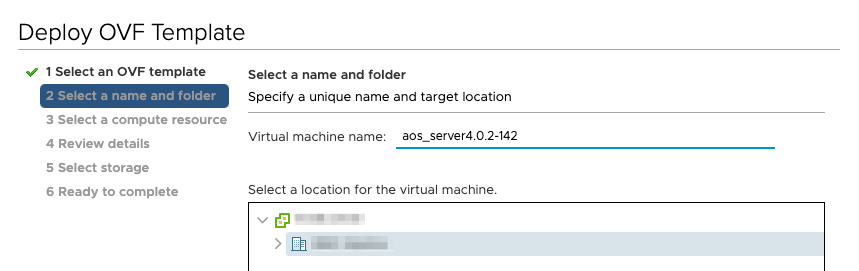
    Step 2 in OVF deployment: Entering "aos_server4.0.2-142" as VM name and choosing target folder in virtual infrastructure.
  6. Select your destination compute resource, then click Next.
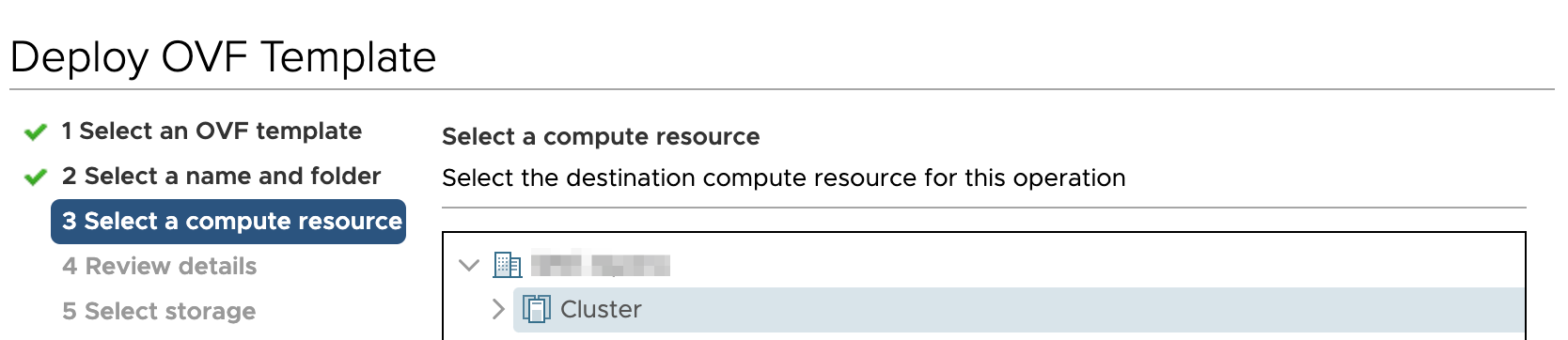
    Step 3 in OVF template deployment: Select a compute resource, progress tracker on left, cluster selection on right.
  7. Review template details, then click Next.
  8. Select storage for the files, then click Next. We recommend thick provisioning for the Apstra server.
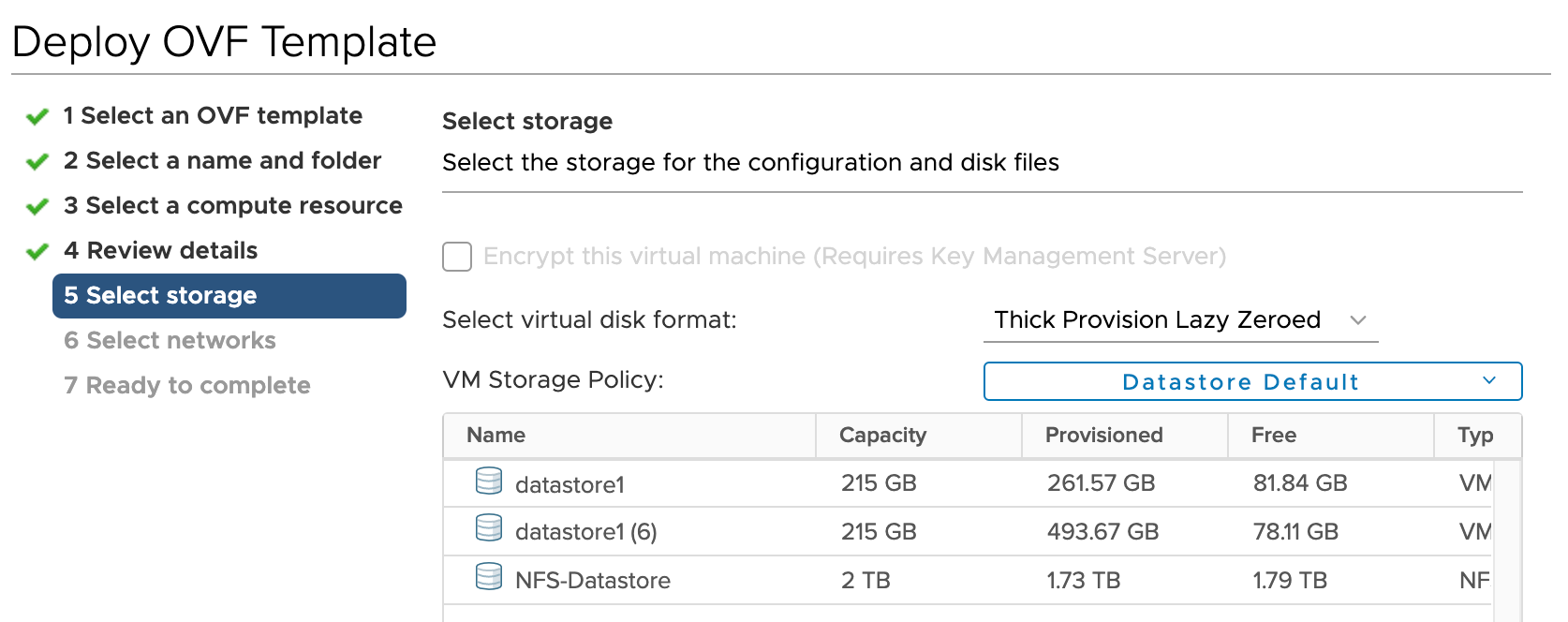
    Step 5 of 7 in OVF deployment: Select storage for the VM. Thick Provision Lazy Zeroed disk format. Datastore options listed with capacities.
  9. Map the Apstra Management network to enable it to reach the virtual networks that the Apstra server will manage on ESXi, then click Next.
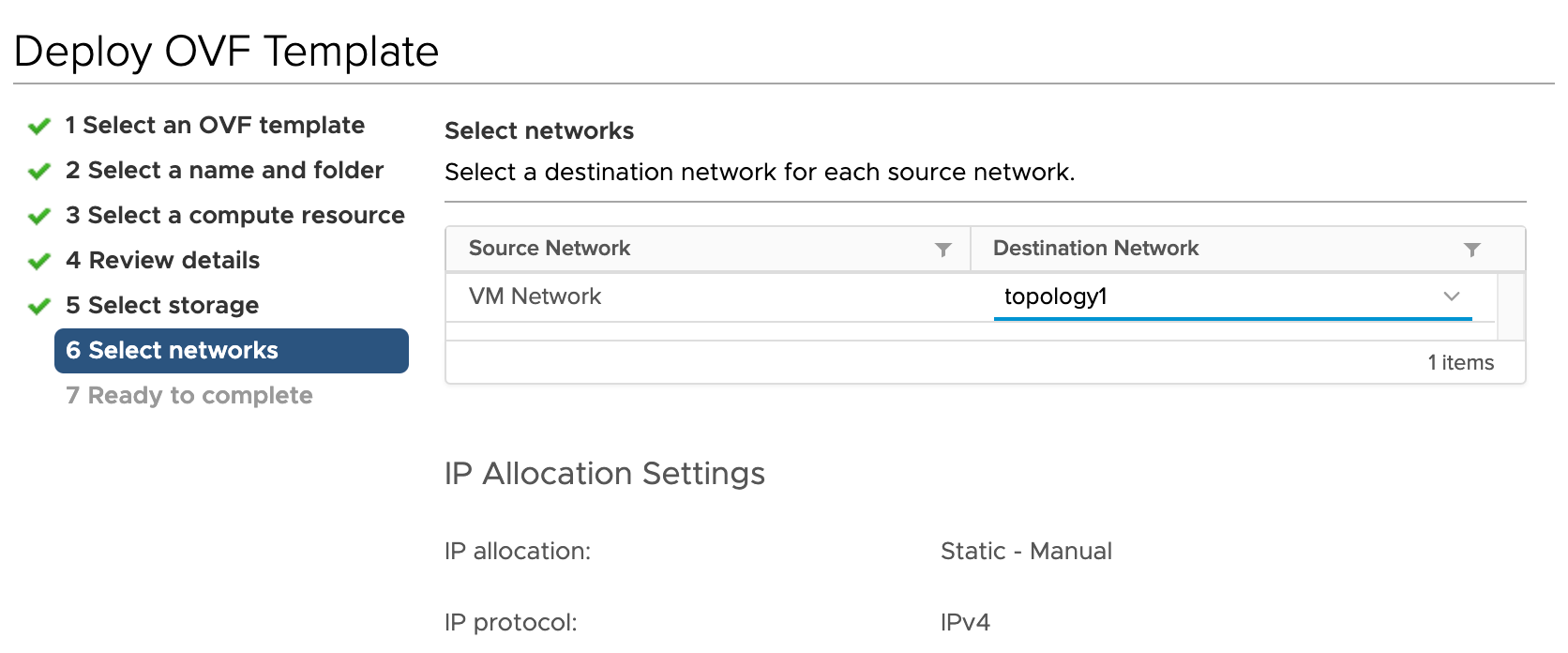
    Step 6 of 7 in deploying OVF template: Select networks. Current network is VM Network, destination is topology1. IP set to Static - Manual, IPv4.
  10. Review your specifications, then click Finish.

You're ready to Configure the Apstra server.