
Register a Juniper ATP Cloud Account
To create a Juniper ATP Cloud account, you must first have a Customer Support Center (CSC) user account. For more information, see Creating a User Account.
When setting up your Juniper ATP Cloud account, you must come up with an organization name that
uniquely identifies you and your company. For example, you can use your company name and
your location, such as Juniper-Mktg-Sunnyvale, for your organization
name. Organization names can only contain alphanumeric characters and the dash (“-”)
symbol.
To create a Juniper ATP Cloud administrator account:
-
Open a browser, type your location specific URL and press
Enter. See Juniper ATP Cloud Web UI Overview for
all portal hostnames by location.
https://amer.sky.junipersecurity.netThe management interface login page appears. See Figure 1.
Figure 1: Juniper ATP Cloud Login
-
Enter your single sign-on (SSO) or CSC username and password. Click
Next. This username and password is same as your CSC
account.
The Create Organization window is displayed. See Figure 2.
Figure 2: Create Your Juniper ATP Cloud Organization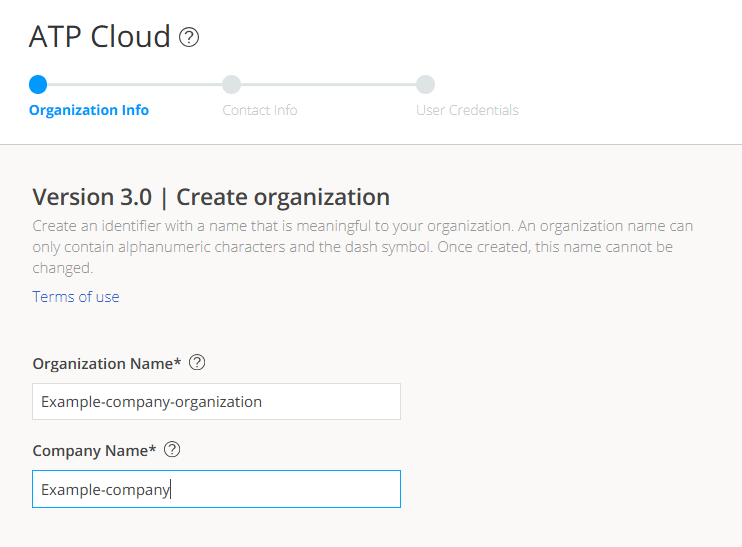
-
Enter your unique organization name and company name. Click
Next.
Note:
Verify your organization name before you click Next. You cannot delete organizations through the Web UI.
The contact information window is displayed. See Figure 3.
Figure 3: Entering Your Juniper ATP Cloud Contact Information
- Enter your contact information and click Next. Should Juniper Networks need to contact you, the information you
enter here is used as your contact information.
The credentials window is displayed. See Figure 4.
Figure 4: Creating Your Juniper ATP Cloud Credentials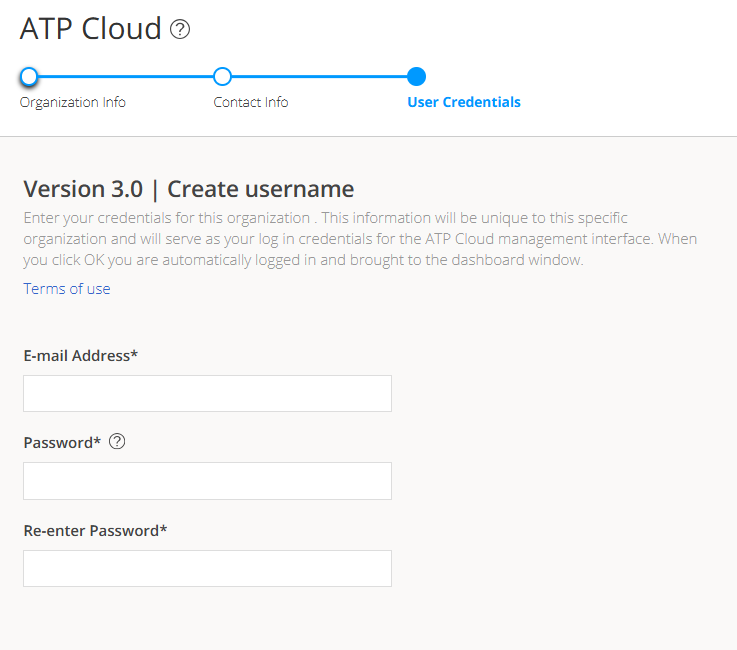
If you forget your password, you have two options:
Create an account on a new organization and re-enroll your devices.
Contact Juniper Technical Support to reset your password.