Help us improve your experience.

Let us know what you think.

Do you have time for a two-minute survey?


Adding a New Compute Node to Existing Contrail Cluster Using Contrail Command

You can add or remove a new node from an existing containerized Contrail cluster.

To add a new compute node to an existing Contrail OpenStack cluster:

  1. Login to Contrail Command UI as a super user using credentials admin for username and contrail123 for password.

    The default credentials for Contrail Command are admin for username and contrail123 for password. We strongly recommend creating a unique username and password combination. See Installing Contrail Command.

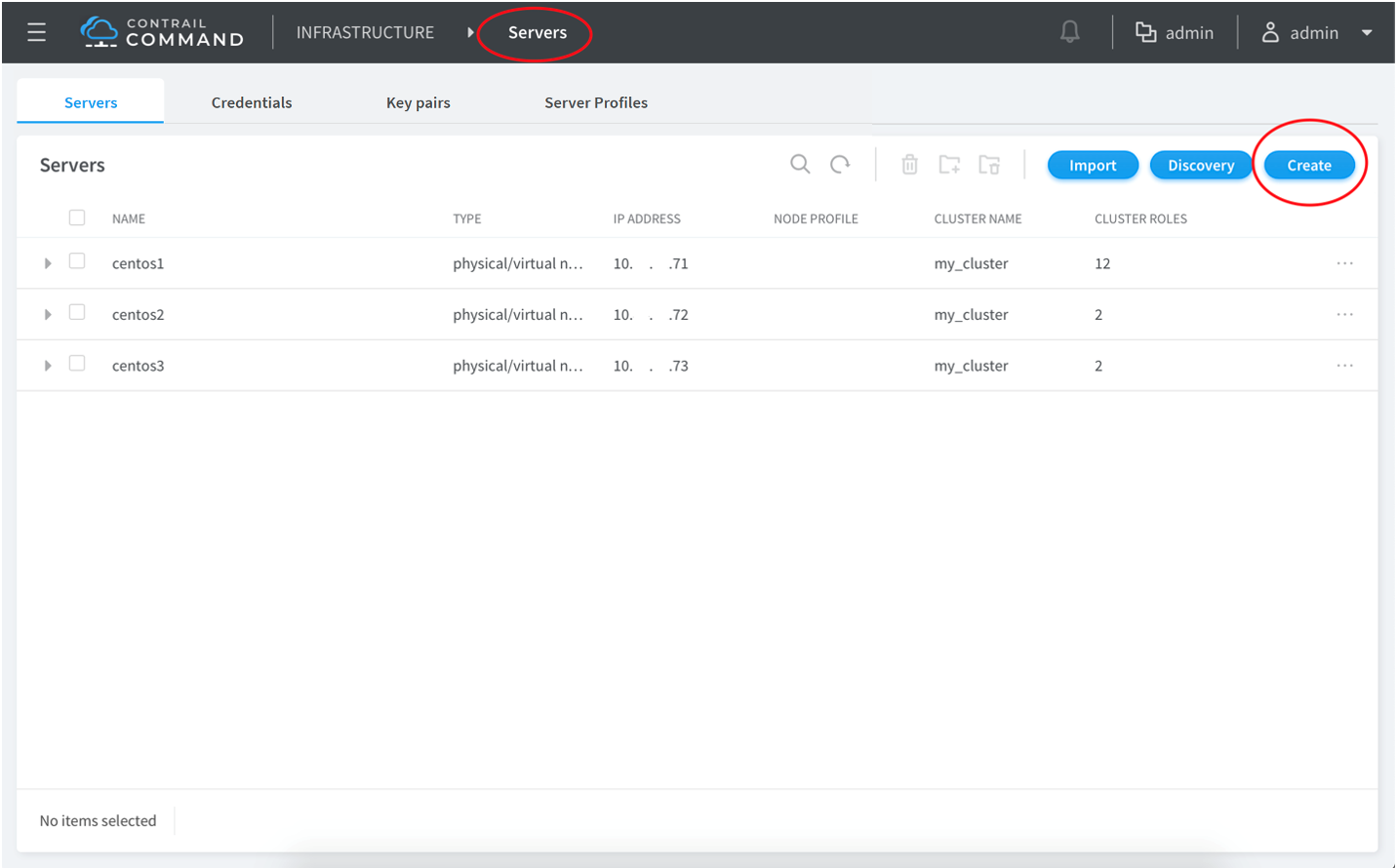
  2. Click Servers.
    1. Click Create.
      Contrail Command UI showing Servers section with server names, types, IPs, and cluster details. Create button circled in red.
    2. Enter the required details.
    3. Click Create.
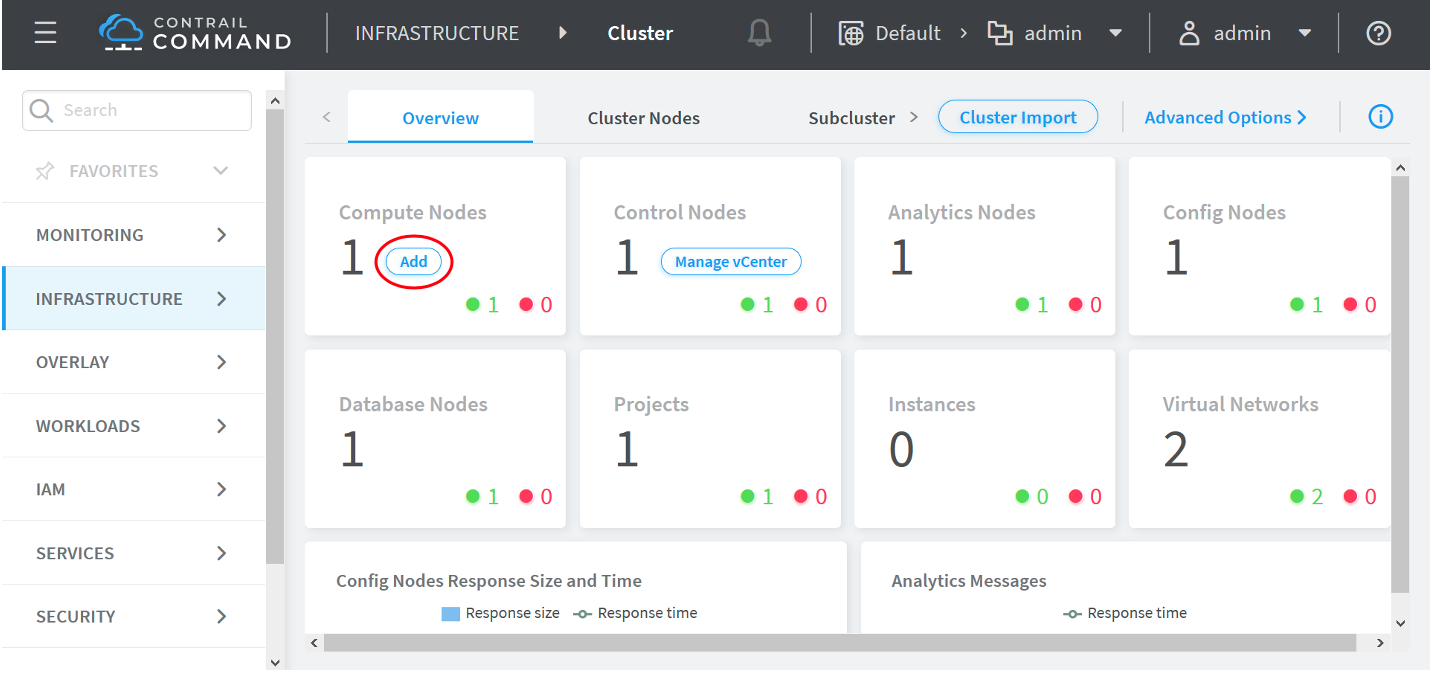
  3. Click Cluster.
    1. Click Add under Compute Nodes.
      Contrail Command UI screenshot showing network cluster management. Infrastructure is selected in the sidebar. Cluster overview displays node counts with health indicators: Compute 1, Control 1, Analytics 1, Config 1, Database 1, Projects 1, Instances 0, Virtual Networks 2. Admin user logged in.
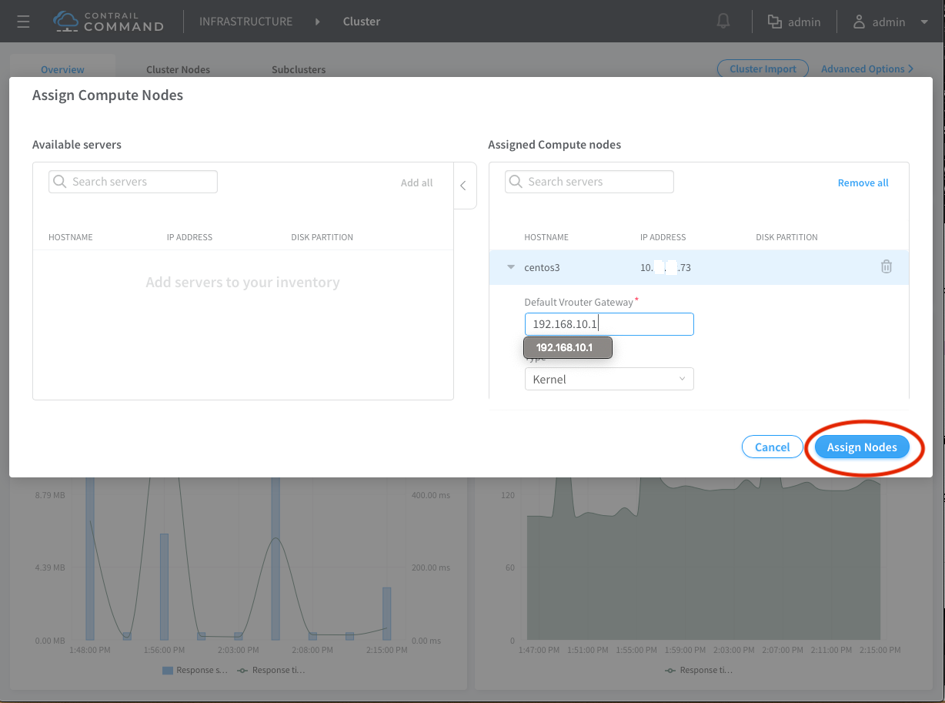
    2. Select the required server from Available Servers list.
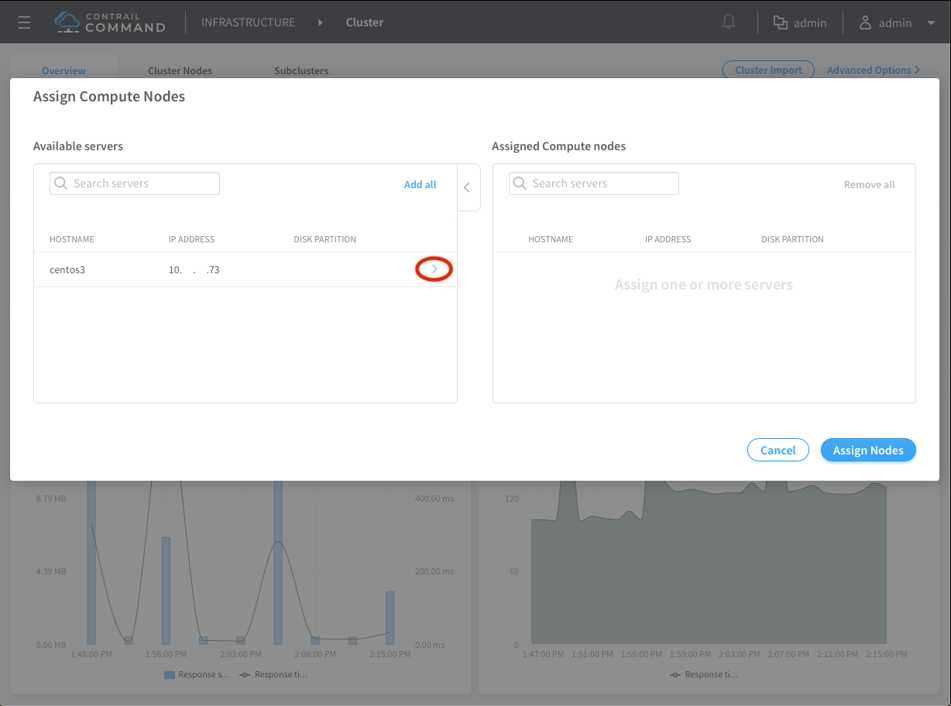
      User interface for Contrail Command tool to assign compute nodes. Available Servers: centos3 with IP 10...73. Buttons: Cancel, Assign Nodes.
    3. Click Assign Nodes.
      Assign Compute Nodes dialog in Contrail Command shows centos3 with IP 10.x.x.73 assigned. Default Vrouter Gateway 192.168.10.1 being edited. Cancel and Assign Nodes buttons available.

Perform the following steps to remove a compute node from an existing Contrail OpenStack cluster.

Note:

Workloads on the deleted computes must be removed before removing the compute node from the cluster.

  1. Login to Contrail Command UI as a super user using credentials admin for username and contrail123 for password.

    The default credentials for Contrail Command are admin for username and contrail123 for password. We strongly recommend creating a unique username and password combination for security purposes. See Installing Contrail Command.

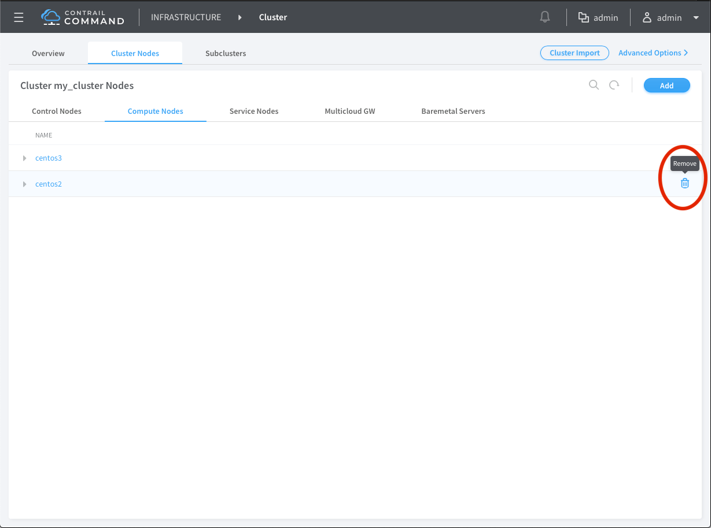
  2. Click Cluster.

  3. Click Compute Nodes.

  4. Remove the required compute node.

    Cluster management UI for Contrail Command displaying cluster nodes. Compute Nodes tab open with nodes centos3 and centos2. Remove button next to centos2. Navigation options include Overview, Cluster Import, Advanced Options.

You can also add a compute node to existing Contrail cluster using instances.yaml file. For details, refer to How to Add a New Compute Node to an Existing Contrail Cluster Using the instances.yaml File.