
View Routing Protocol Details from the Map
- Select the Subviews > Protocols menu from the Standard
Map. The protocols enabled in the network will be displayed in the
left pane of the map window as shown in the figure below.Figure 1: Routing Protocols
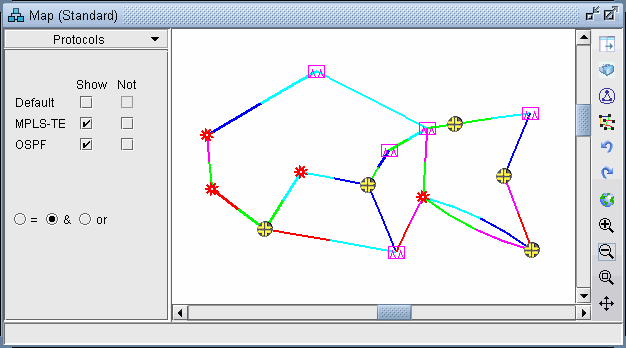
With the ‘=’ radio button selected, clicking a checkbox next to a single protocol will display links enabled for that protocol. When selecting the ‘&’ or ‘or’ radio buttons, logical combinations of protocols can be viewed. For example, in the above, only links that have both MPLS and OSPF enabled are displayed.
- To view the link metrics on the map, right-click the map
and select Labels>Link Labels>Show Link Dist. Note that
this will display the metrics for the current routing method used.
The current IGP routing method is displayed in the upper right of
the application next to the Tunnel later/layer 3 buttons.Figure 2: Current IGP: OSPF

Alternatively, the link metric can be labelled by selecting Labels>Link Labels>Link Labels... and then Customize... In addition to Metric_AZ and Metric_ZA, the following keys are also available: OSPF_AZ, OSPF_ZA, ISIS1_AZ, ISIS1_ZA, ISIS2_AZ, and ISIS2_ZA. Select the keys desired and click Add-> to add those keys to the list of keys to display. Then select a display format and click OK.