
Run Compliance Assessment Check
Select the Configurations tab and check the configuration files on which you wish to perform a compliance assessment check.
The right-click pop-up menu provides shortcuts to perform selections or deselections on all or selected configuration files.
Keyboard shortcuts can select a range of rows using <Shift>-click. Individual row selection can be selected with <Ctrl>-click. All rows can be selected with <Ctrl>-a.
The Filter field can be used to filter on the hostname, OS, or file name. To reset the filter and show all configuration files, enter wildcard * or leave the field blank and press <Enter>.
Figure 1: Configurations Filter field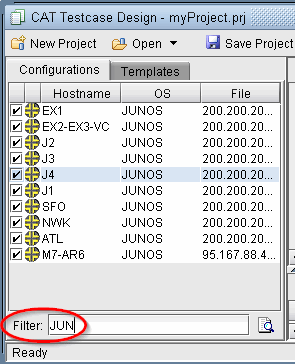
Select the Templates tab to select the compliance assessment rules to apply.
It’s recommended to save the project before continuing.
Click Check Compliance from the toolbar. The program will automatically save your script changes. The program will then begin to run a check of the selected template(s) on the selected configuration file(s).
Figure 2: Check Compliance Results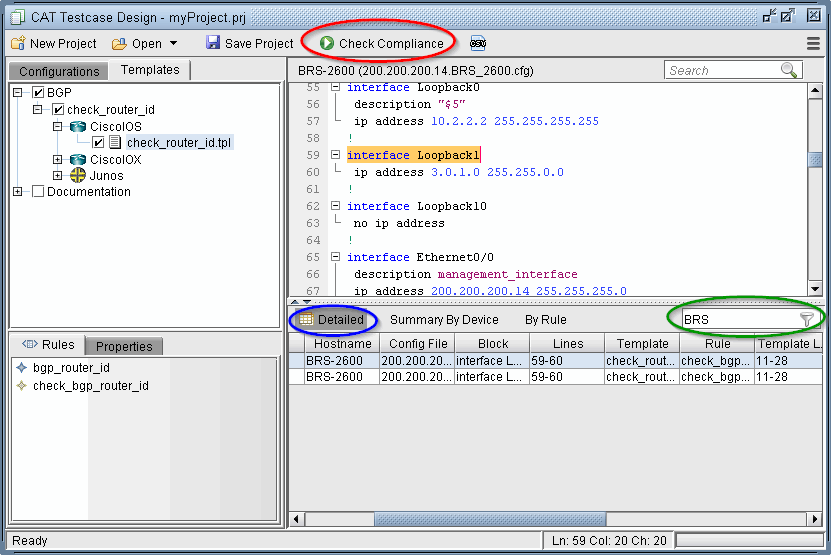
The results of the compliance assessment check are shown in the bottom panel.
The Detailed tab shows the specific details for each configuration check. Double-clicking an entry will open the configuration file at the matching line. The Summary By Device tab provides statistics for the configuration check per device. The By Rule tab provides statistics for the configuration check per template rule.
Use the Filter field above the results table to filter the table by a given string. To reset the filter and show all results, enter wildcard * or leave the field blank and press <Enter>.