Help us improve your experience.

Let us know what you think.

Do you have time for a two-minute survey?


Identifying Equal Cost Multiple-Paths

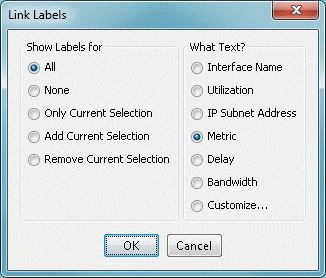
  1. Right-click on the topology map and select Labels > Link Labels > Show Link Metrics.
    Figure 1: Show Link DistanceDialog box titled Link Labels with sections for displaying link labels: All, None, Only Current Selection, Add Current Selection, Remove Current Selection. Text options: Interface Name, Utilization, IP Subnet Address, Metric, Delay, Bandwidth, Customize. OK and Cancel buttons at the bottom.
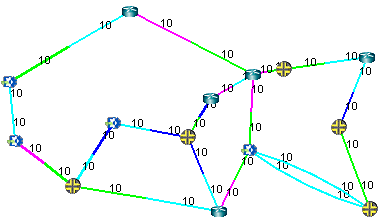
  2. The link distances will be displayed and we can see that in this network, every metric has been set to 10. This is very likely to cause numerous equal cost multiple-paths to exist.
    Figure 2: Topology Map with Link DistancesNetwork topology diagram with interconnected nodes labeled 10, indicating bandwidth, cost, or routing metrics. Different link colors suggest paths or attributes.
  3. Select Report > Report Manager to open up the Report Manager.
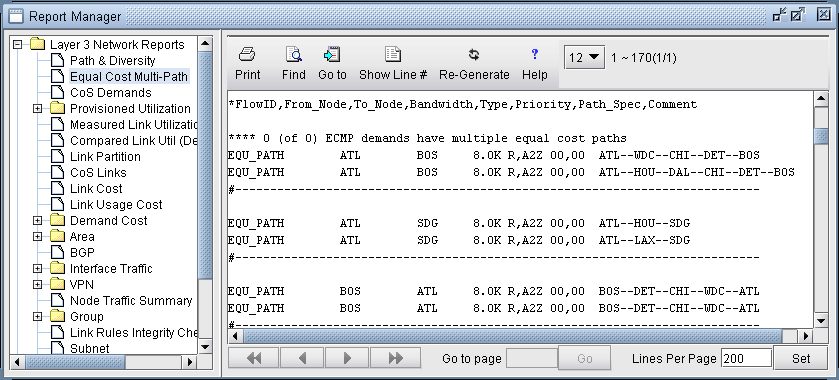
  4. Select Network Reports > Demand Reports > Equal Cost Multi-Path Report from the left panel to bring up the report listing all of the equal cost multiple-paths of the network. As can be seen in Figure 3, there are many such paths. This report is also saved on the server as EQPATHRPT. runcode. Note that the ECMP paths are calculated based on IP metric only, and do not factor in the influence of MPLS traffic engineering tunnels on the demand routing.
    Figure 3: Equal Cost Multiple-Paths ReportNetwork analysis tool interface showing ECMP routing report. Left panel lists report categories. Right panel details ECMP demands with paths between nodes. Toolbar includes print and navigation options.
  5. Select Network > Path & Capacity > Equivalent Path to bring up the Demand Equivalent Path window.
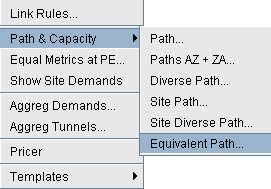
    Figure 4: Network > Path & Capacity > Equivalent PathDropdown menu from software interface showing network path and capacity options like Link Rules, Path and Capacity, Equal Metrics at PE, Show Site Demands, Aggreg Demands, Aggreg Tunnels, Pricer, and Templates.
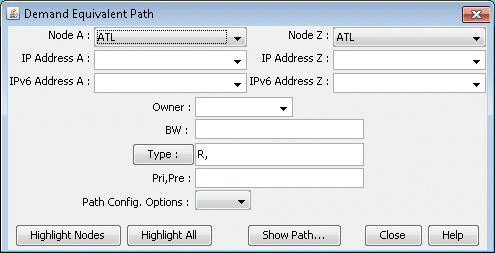
  6. Select Node A and Node B, then click Show Path. The Path window will be displayed.
    Figure 5: Demand Equivalent PathGraphical user interface for Demand Equivalent Path tool with dropdowns for Node A and Z, fields for IP and IPv6 addresses, owner, bandwidth, and type. Includes buttons for node highlighting, path display, and help.
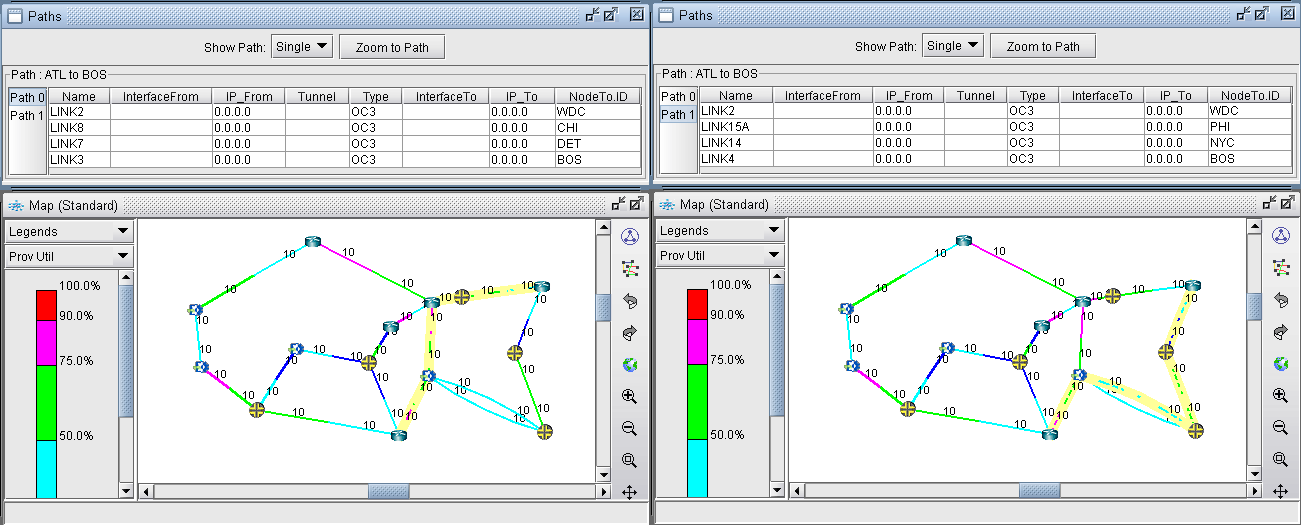
  7. All of the equivalent paths between the two selected nodes will be displayed in the Paths window. Select a path to view its detailed information and highlight it on the topology map.
    Figure 6: Equivalent Cost PathsNetwork management interface with top panels showing path details from ATL to BOS and bottom panels displaying color-coded network maps indicating utilization levels from 50 to 100 percent.

    Reducing Equal Cost Multiple Paths

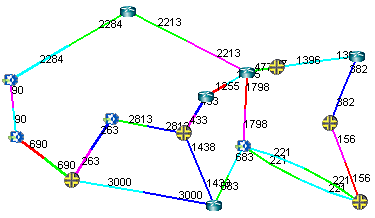
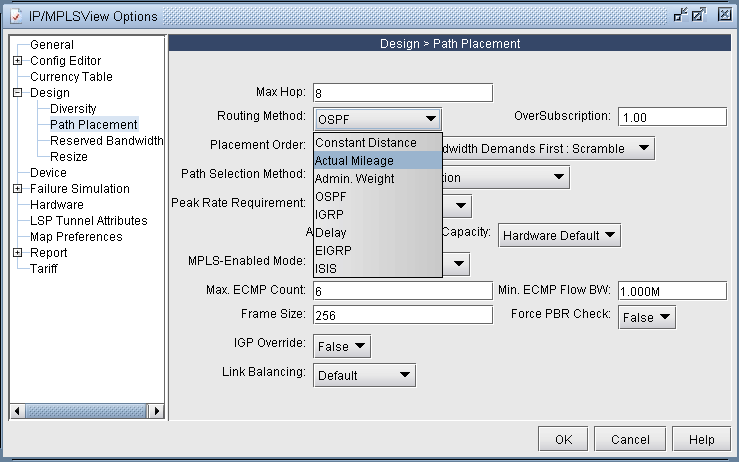
  8. If you choose your link metrics wisely (such as using the real distance in miles like in Figure 7), you can increase the variability of the path costs which will make it less likely for equal cost multiple-paths to occur.
    Figure 8: Routing according to Actual MileageNetwork design configuration window for IP/MPLS path placement. Options include Max Hop, Routing Method, Path Selection Method, Peak Rate, MPLS-Enabled Mode, Max ECMP Count, Frame Size, PBR Check, IGP Override, and Link Balancing. Navigation menu with sections like General, Design, and Report on the left. Used for designing and optimizing networks.
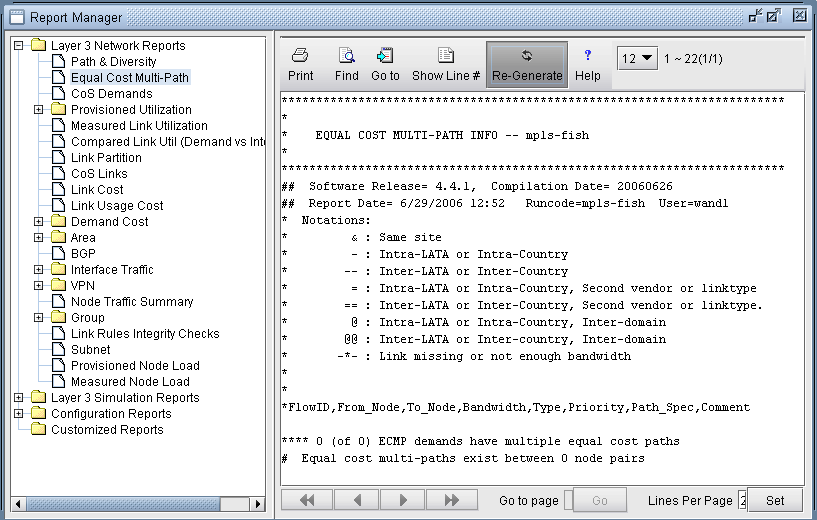
  9. Open up the Equal Cost Multi-Path Report again and you will see that there are no longer any equal cost multiple-paths in the network with the new link metrics.
    Figure 9: New Equal Cost Multiple-Paths ReportSoftware interface of a network report manager. Left panel displays network reports like Path & Diversity and Equal Cost Multi-Path. Right panel shows details of Equal Cost Multi-Path report, including metadata and a summary stating no ECMP demands have multiple equal-cost paths. Toolbar at top offers print, find, navigate, regenerate, and customize options.