
Viewing GRE Tunnels
Select Network > Elements > Tunnels... in View or Design mode.
To filter for all GRE tunnels, click the Filter icon and type GRE in the Type field. (Alternatively, filter on “Type=GRE” in the Advanced Filter).
Figure 1: Filtered GRE Tunnels
Select the GRE tunnel to view and then click Show Path to view its path.
Figure 2: GRE Tunnel routed over LSP Tunnel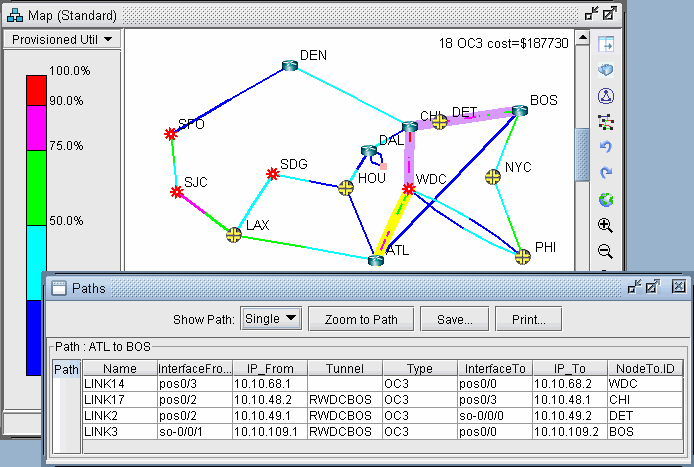
Note that a tunnel itself can route over a tunnel (in this case, an LSP tunnel). The portion that travels over another tunnel is colored in purple.