Viewing VLAN Details
Accessing Layer2 Information
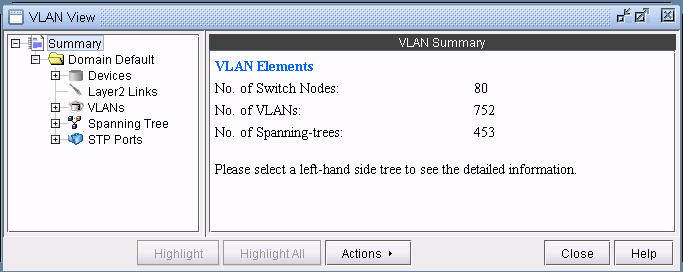
To view a summary of all VLANs and STPs that are present in the current network, bring up the VLAN Summary window (via the Network > Services > VLAN) as shown in the following figure.
The window will display the number of VLANs, STPs and layer2 switch nodes, present in the network on the right panel. The Summary tree on the left panel has Access domains in the next level that contains information of VLANs, VLAN devices’ layer2 details, spanning trees etc. More details on access domains will be discussed later in the chapter.
Accessing VLAN Information
To view VLANs that are present in the selected access domain, click on VLANs sub-tree. The window will provide a list of all VLANs with details such as VLAN IDs, VLAN names, number of nodes in each VLAN etc. on the right panel. Click on a row on the right panel to view the selected VLAN’s details under Properties panel.
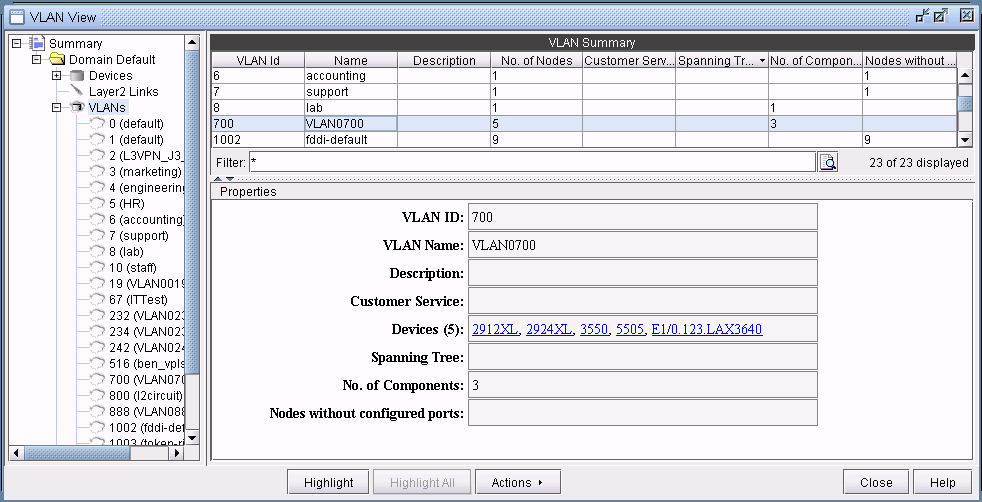
With a particular VLAN selected, you may also click on the Highlight button to view all the devices associated with the VLAN highlighted on the main topology map.
Accessing VLAN Report
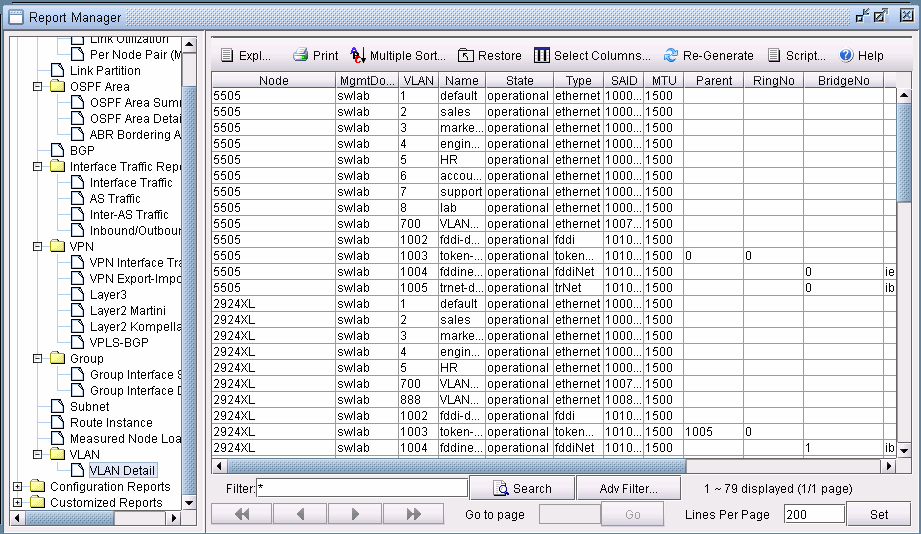
A VLAN report is generated from running VLAN discovery task or importing intermediates directory into the network. The generated report can be accessed from Actions > Report in VLAN View window or through Report > Report Manager from the main menu.
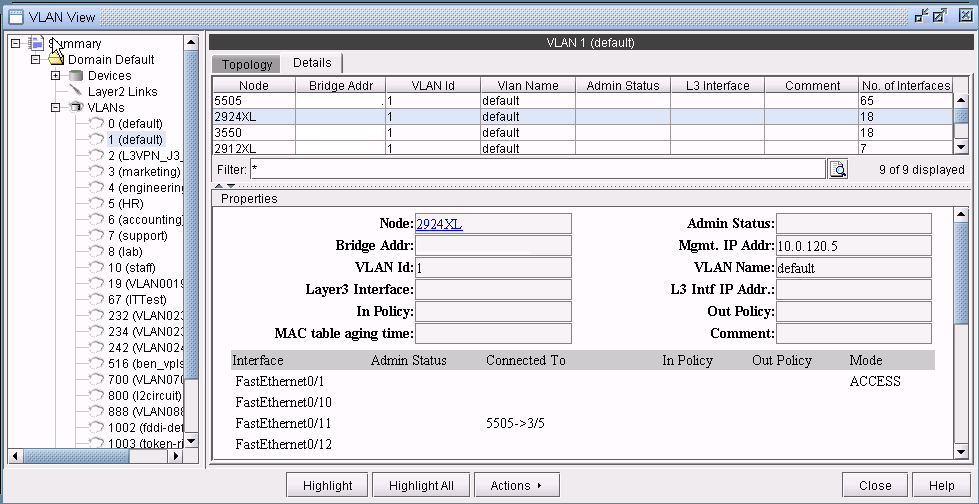
You may double-click on VLANs sub-tree or click the (+) icon next to VLANs sub-tree to view a list of all VLANs in the selected access domain, where the VLANs are categorized by VLAN name.To view more detailed information of a VLAN, click on a VLAN in the left panel.The Details tab, on the right panel, lists all the devices that belong to the selected VLAN and each node’s details such as bridge addresses, number of interfaces assigned to the VLAN, in/out policies etc. Click on a row on the right panel to view the selected node’s VLAN details under Properties panel.
Accessing Devices Information
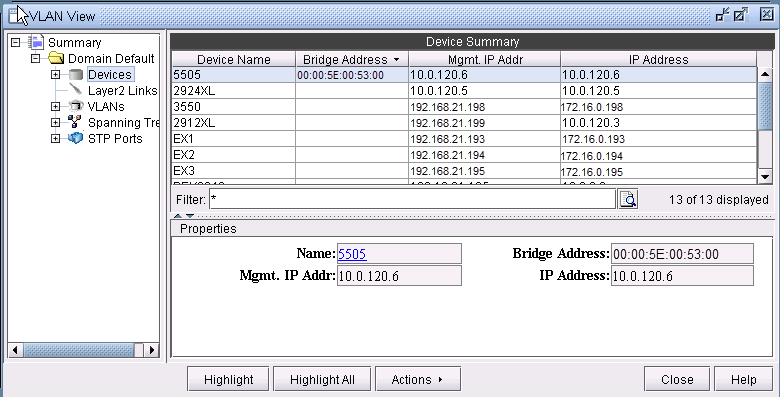
The Devices sub-tree lists all the devices that belong to VLANs in the selected access domain, with their layer2 and layer3 address details.To view the devices, click on Devices sub-tree. Click on a row on the right panel to view the selected device’s details under Properties panel.
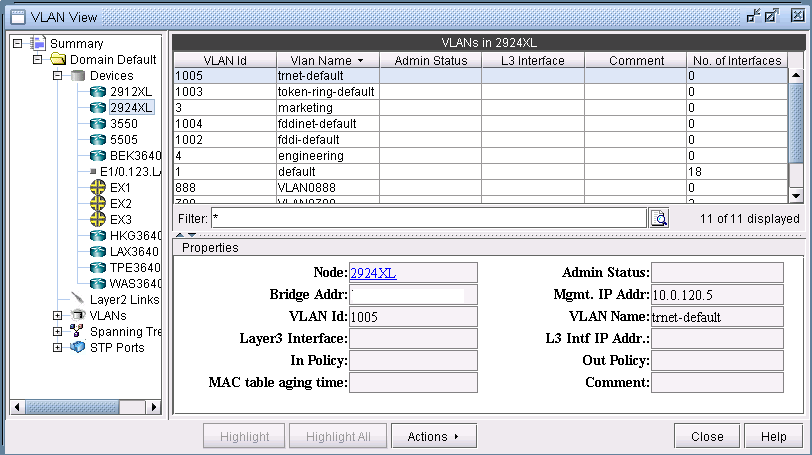
Expand Devices sub-tree to view a list of all Devices in the selected access domain. To view more detailed information of a device, click on a device in the left panel. The Details tab, on the right panel, lists all the VLANs and VLAN related configuration details associated with the selected node. Click on a row on the right panel to view the selected VLAN’s configuration details under Properties panel.
Accessing Layer2 Links Information
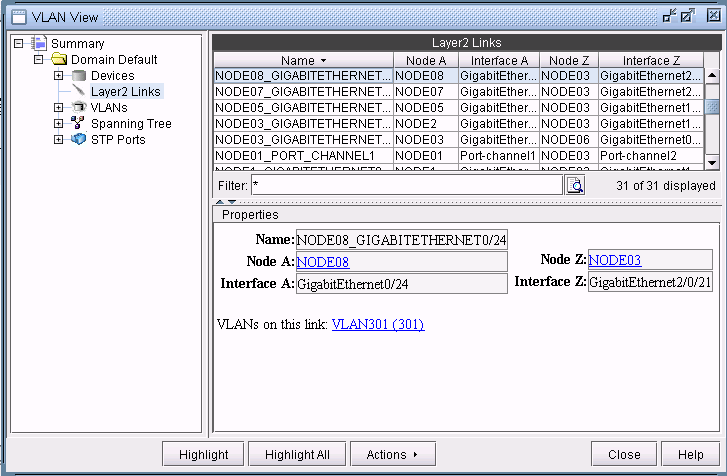
Click on Layer2 Links to view all layer2 physical links that are present between VLAN devices in the selected access domain. For any aggregate links, such as Port-channel interfaces, right-click on the entry and select “Show Related Interfaces” to identify the physical interfaces belonging to the Port-channel interface.
Accessing STP Information
To view spanning trees that are present in the selected access domain, click on Spanning Tree sub-tree.The window will list all the spanning tree types.
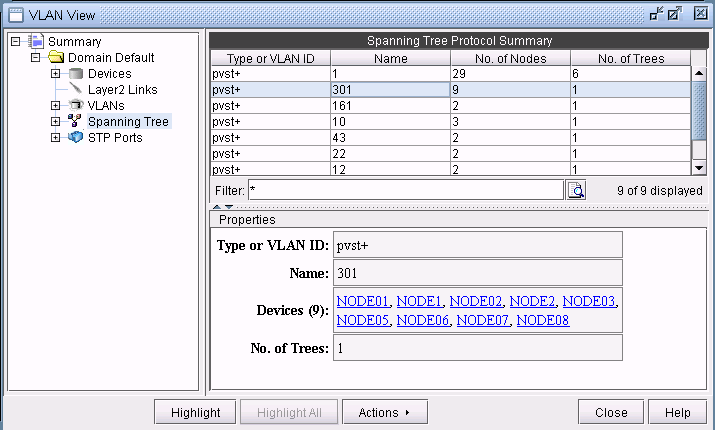
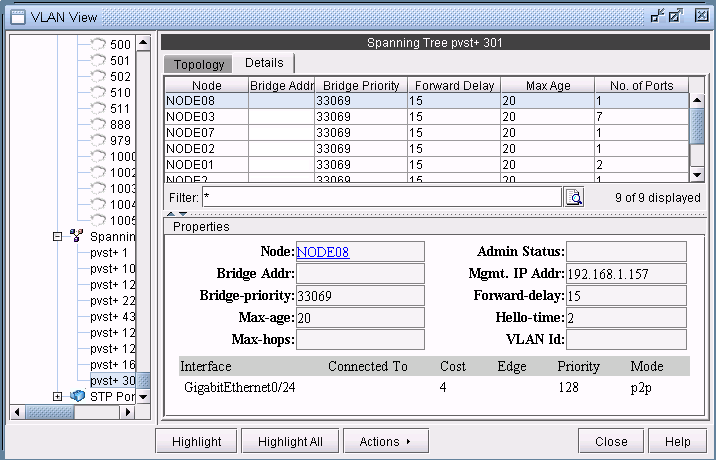
Expand Spanning tree and you should see a list of all the spanning trees present in the selected access domain with the following naming convention: STP-Type VLANID for PVSTs and STP-Type for other spanning tree types. Select a spanning tree to view the list of nodes and spanning tree related configurations associated with them.
Accessing STP Ports Information
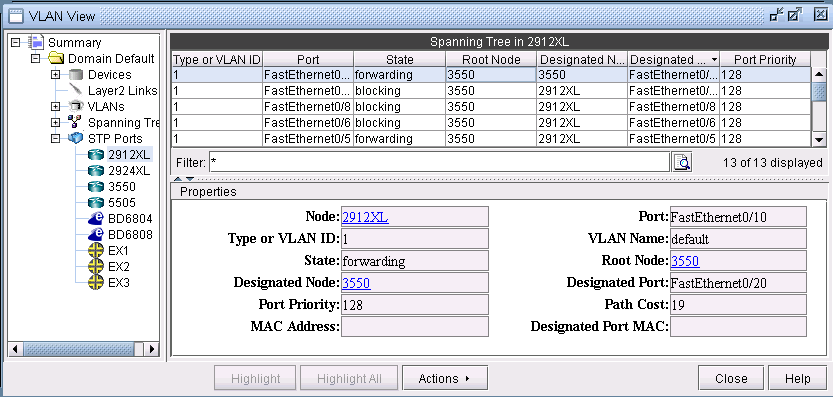
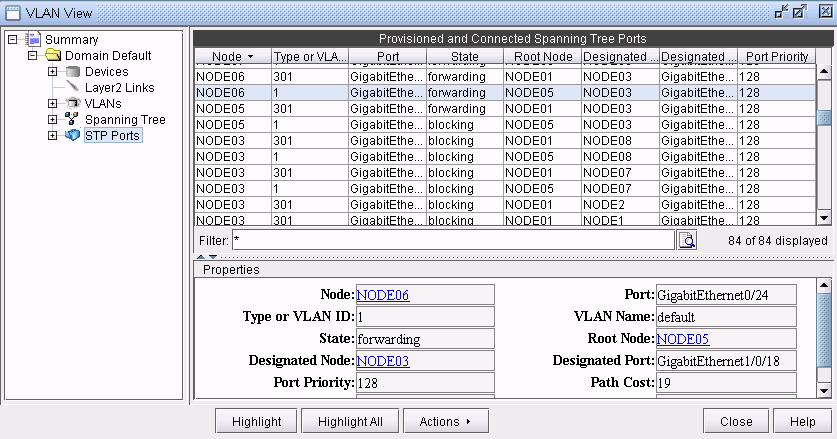
STP Ports subtree displays all the node ports that are part of the spanning trees in the selected access domain, with other details such as port types, states, priority etc.
Accessing STP Ports Information for a Particular Node
Expand STP Ports and you should see a list of all the devices present in the selected access domain. Select a device to view the list of ports participating in spanning tree for that particular node, and the related spanning tree information, such as the recorded root node, the recorded designated node, the port state, etc.