Help us improve your experience.

Let us know what you think.

Do you have time for a two-minute survey?


VPN Topology View

The VPN Topology View (or VPN View) presents to the user a clear, logical view of each individual VPN.

To display a logical topology view of any particular VPN, simply click on the VPN Topology tab (next to the Details tab). You may also move the nodes around as desired in the VPN topology view map. The following figures show the VPN View for various VPNs. Note that CEs are shown as router icons when the config file is available; otherwise, a computer icon is shown.
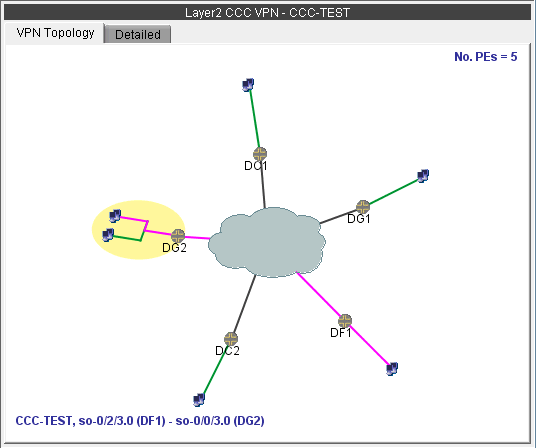
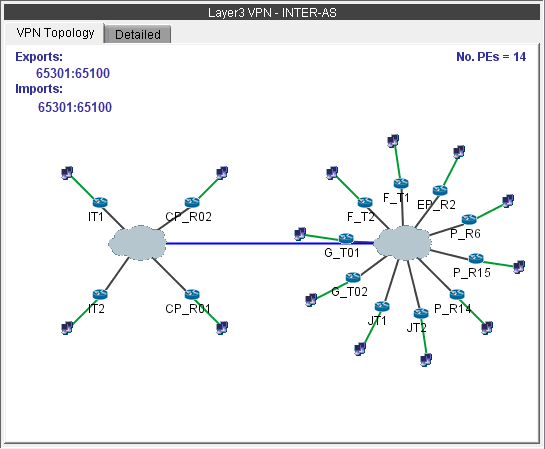
Figure 1: VPN View for a L2CCC VPN (with the selected circuit highlighted in pink)Network topology diagram for a Layer 2 CCC VPN labeled CCC-TEST showing connectivity between devices DG1, DG2, DC1, DC2, DF1. Highlighted connection between DG2 and DF1. Five Provider Edge devices present.
Figure 2: VPN View for an Inter-AS VPN (called INTER-AS)Network topology diagram for Layer 3 VPN in Inter-AS. Two clouds represent autonomous systems with a blue line interconnection. 14 PE routers and specific RT values 65301:65100 for routing.

You may also display additional information (i.e., RD, Route Targets, interface) for a node by clicking on it for a pop-up window to appear, as shown in the following figure.
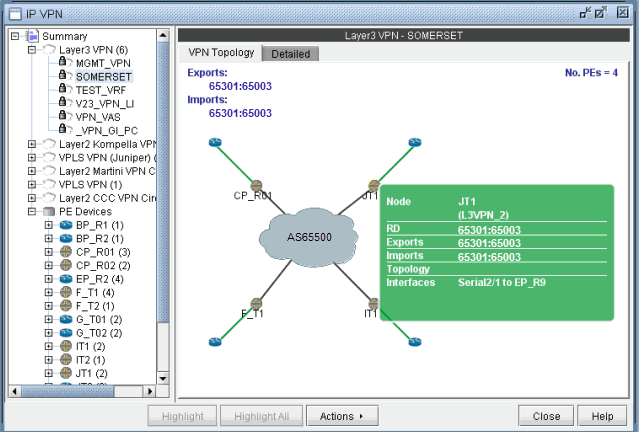
Figure 3: Green pop-up information window for a nodeScreenshot of a network management tool showing the topology of a Layer 3 VPN named SOMERSET. The left panel lists VPNs and devices; the main panel displays the VPN topology with central node AS6500 and connected nodes CP_R01, EP_R11, IT1, JT1. The right panel provides details for node JT1.

There is also a right-click menu that you can use to perform basic functions to manipulate the topology and the labels.
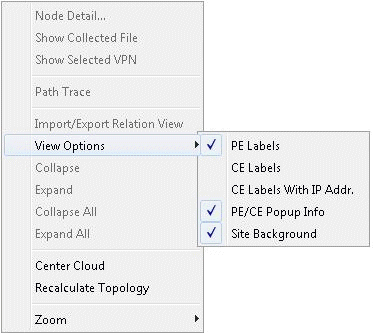
Figure 4: Right-click menu showing topology and label functionsContext menu from network software with options like Node Detail, Show Collected File, Path Trace, and View Options with sub-options like PE Labels and Site Background.