
VPN Path Tracing
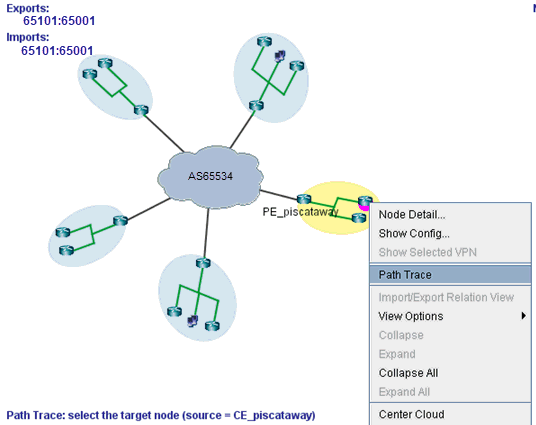
VPN path tracing allows you to see the routing path between two nodes belonging to a VPN. A VPN path trace can be performed by selecting the Path Trace option of the right-click menu in the VPN Topology View. To use this feature, right-click over the source node, select Path Trace, and then click the destination node. The routing path details will then be shown on the main topology map. The following figure shows the VPN path trace feature being performed between CE_piscataway and another node of the VPN.
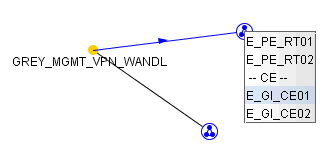
VPN Path Tracing in Import/Export Relations View is performed in a similar fashion. Right-click over a group, and select Path Trace to reveal a drop-down menu of PEs and CEs (if any), as shown in the following figure. Double-click to select a particular PE or CE as the source node. Then do the same to select the destination node.
Alternatively, a VPN path trace can be performed between PEs (and CEs if managed) of a VPN via the Network > Path & Capacity > Path menu as shown in the following figure.
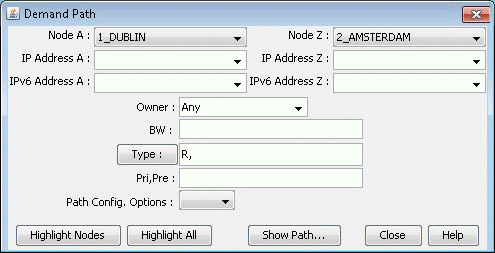
To perform a VPN path trace instead of a regular path trace, first choose the desired VPN from the Owner dropdown selection. Note that if the VPN is not listed in the owner selection, you should at it first from the VPN window as described in Forming VPN Customer Groups. Click on Highlight All to display all the nodes for the selected VPNNext, click on two of the highlighted nodes in order to see the routing being performed. PEs are highlighted yellow, and CEs (if any) are highlighted blue.