Route-Target Export/Import Relationships
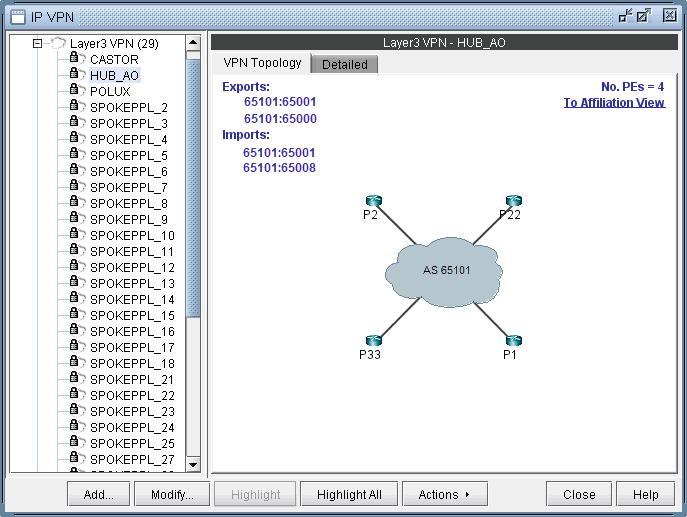
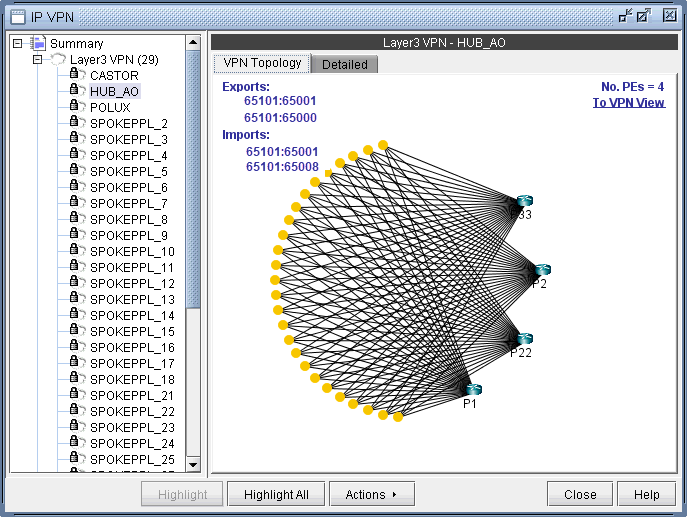
The VPN View also shows route target export/import relationships that exist between VPNs. A visual picture helps the network planner or engineer to clearly and quickly identify relationships between VPNs (e.g. hub-and-spoke or extranet VPN relationships). When there are export/import relationships with other VPNs, then the To Import/Export Relation View selection in the upper right-hand corner of the VPN View becomes visible. The following figure shows that VPN HUB_AO has export/import relationships with other VPNs, since the To Import/Export Relation View selection is visible.
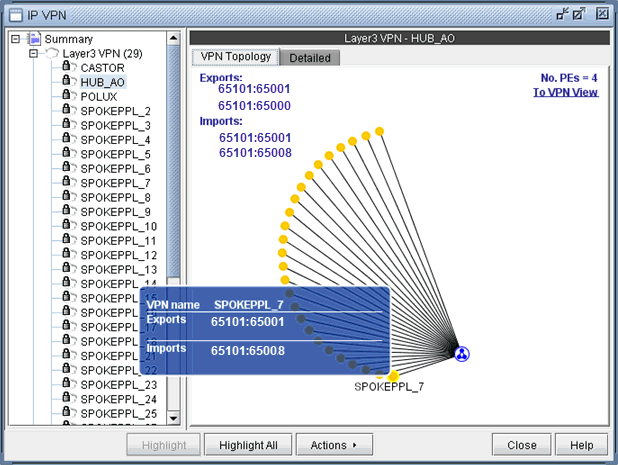
Click on To Import/Export Relation View to get to the Import/Export Relation View. The blue circle icon with a triangle inside is a grouping icon represents the current VPN (HUB_A0), while the yellow dot icons represent other VPNs (in this example, the SPOKEPPL_* VPNs) that have export/import relationships with the current VPN.
To see how other VPNs (the yellow dots) are related to the current VPN, you can click on a yellow dot to see the route targets that are being exported and imported. For instance the following figure shows that VPN SPOKEPPL_7 is exporting 65101:65001 and importing 65101:65008, while HUB_A0 is exporting 65101:65008 and importing 65101:65001. The Import/Export Relation View allows you to clearly see relationships between VPNs. Note that you can go back to the regular VPN View by clicking on To VPN View.
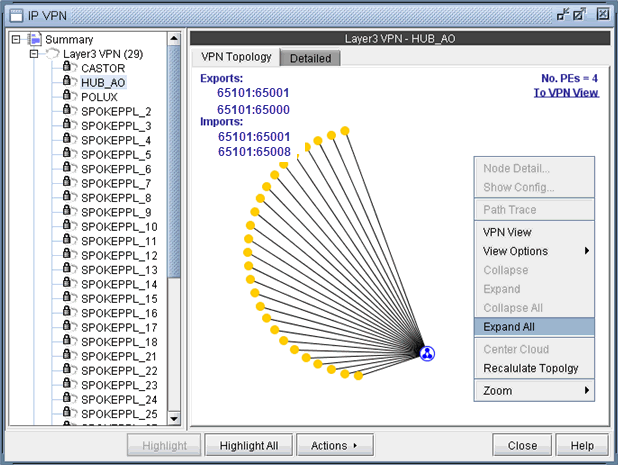
The right-click menu of the Import/Export Relation View gives you the option to expand the currently collapsed VPN (HUB_AO) which is represented by the blue circle icon with a triangle in it. Selecting Expand All would reveal all the nodes with in the VPN.
The following figure shows you the Import/Export Relation View with the nodes in VPN HUB_AO expanded.
You can also move the icons around. Control-click to select multiple icons.
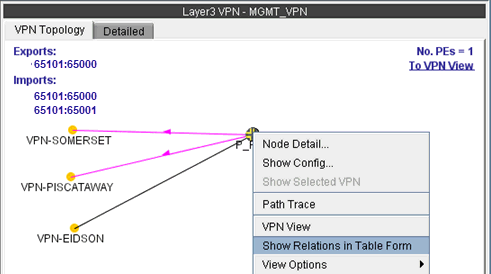
Instead of the visual display showing the import/export relationships that is in the Import/Export Relation View, you can also access the same information in table form. As shown in the following figure, you would choose Show Relations in Table Form from the right-click menu.
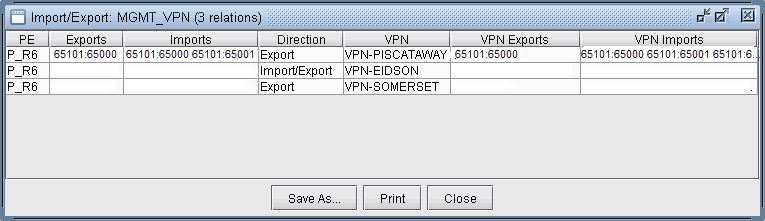
Once Show Relations in Table Form is chosen, the Export/Import table for the VPN is shown.
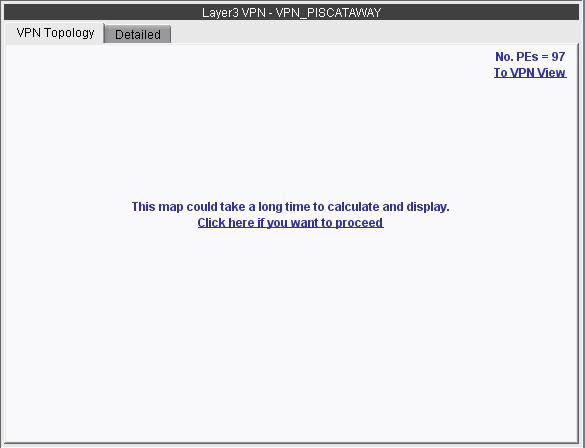
In instances when there are a large number of export/import relations and you click on To Import/Export Relation View, you will be prompted with the “This map could take a long time to calculate and display.” message. If you would be willing to wait and still want to see the export/import relations in graphical form, then click on “Click here if you want to proceed.” Instead, you may choose to view the import/export relations in table form, as described in the previous step.
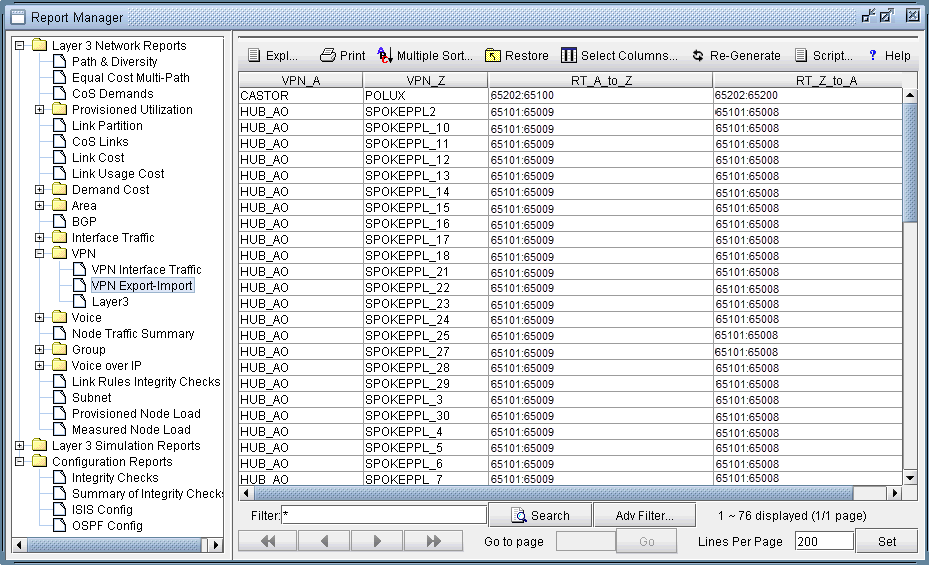
The Report Manager includes a VPN Export-Import report under Network Reports > VPN, as shown in the following figure, that shows all of the route target export/import relationships that exist between VPNs in the network.