
Configure a Rule Using Syslog
With the syslog ingest settings complete, you can now create a rule using syslog as the sensor.
This rule includes three elements:
-
A syslog sensor
-
Four fields capturing data of interest
-
A trigger that indicates when the interface goes down
See the usage notes at the end of this section for more detail on what has been configured.
-
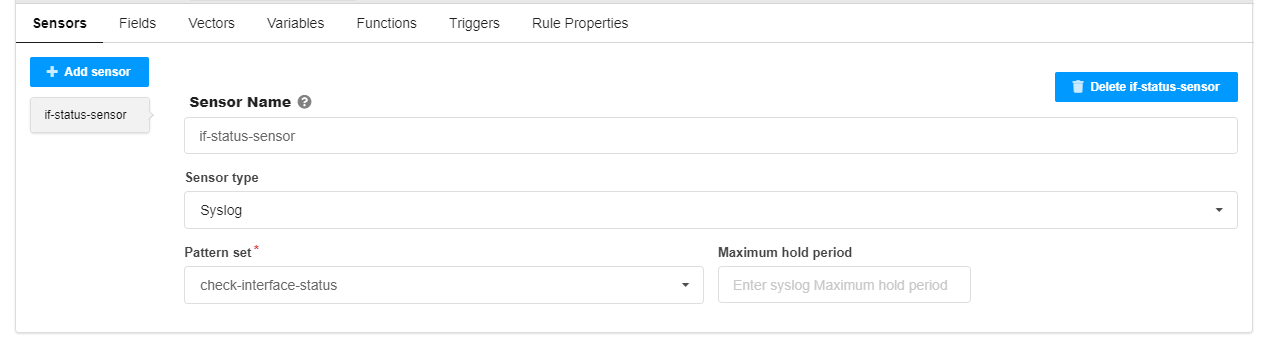
Click the + Add sensor button and enter the
following parameters in the Sensors tab:
-
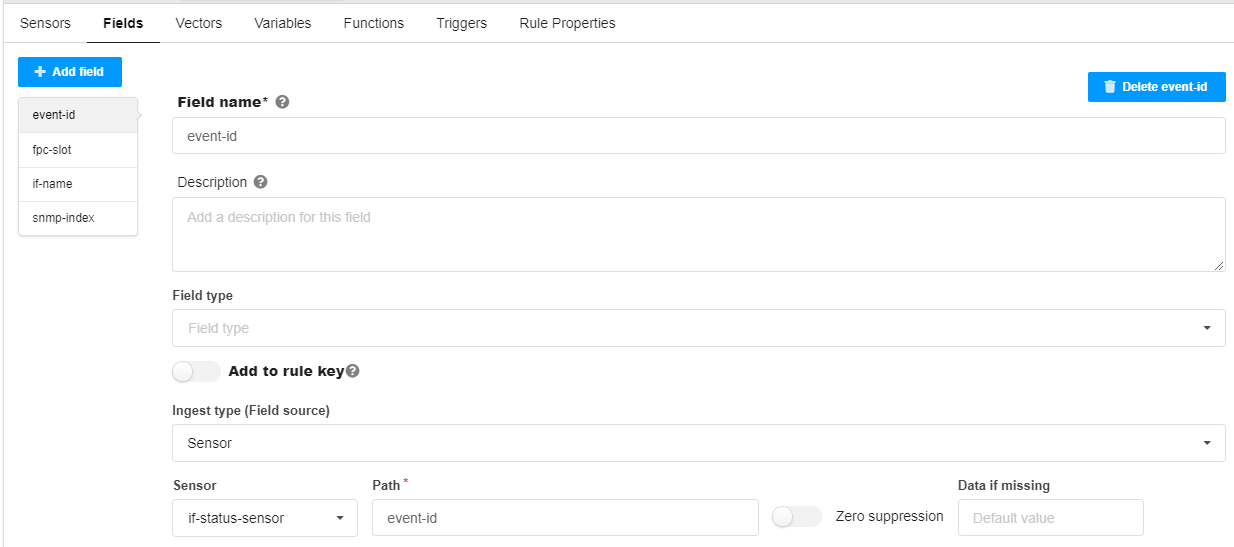
Now move to the Fields tab, click the + Add field button, and enter the following parameters to configure the first
field, named event-id:
-
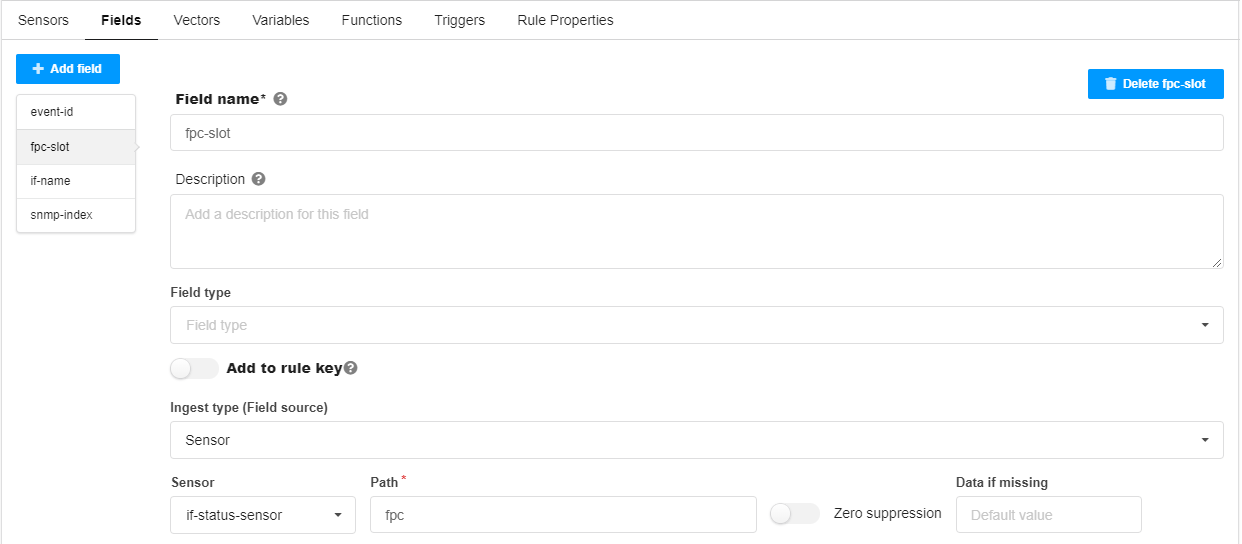
Click the + Add field button again and enter
the following parameters to configure the second field, named fpc-slot:
-
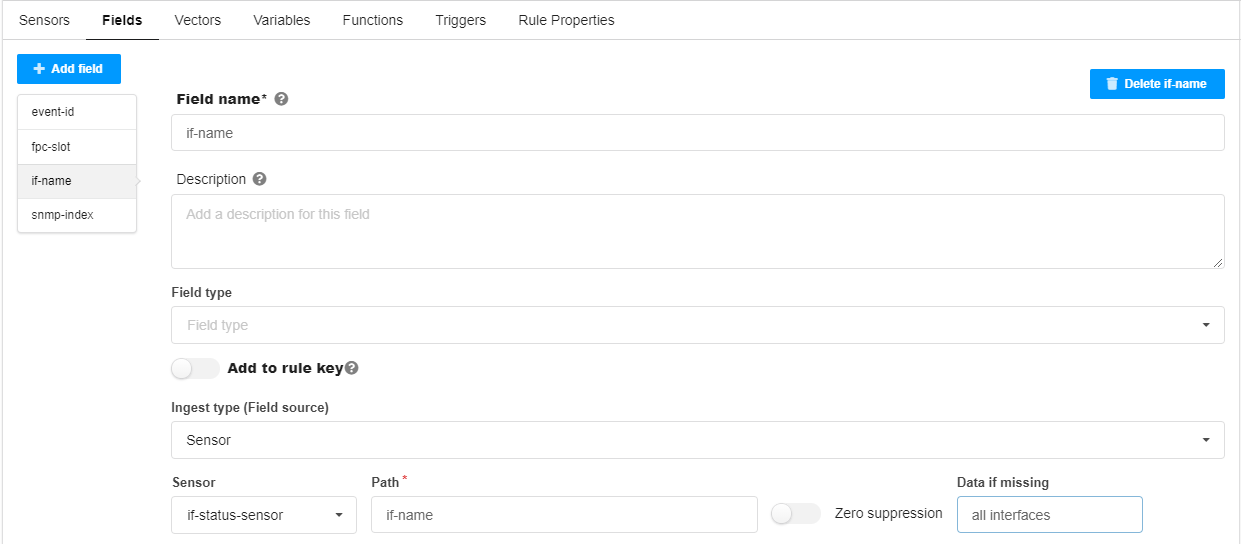
Click the + Add fieldbutton again and enter
the following parameters to configure the third field, named if-name:
-
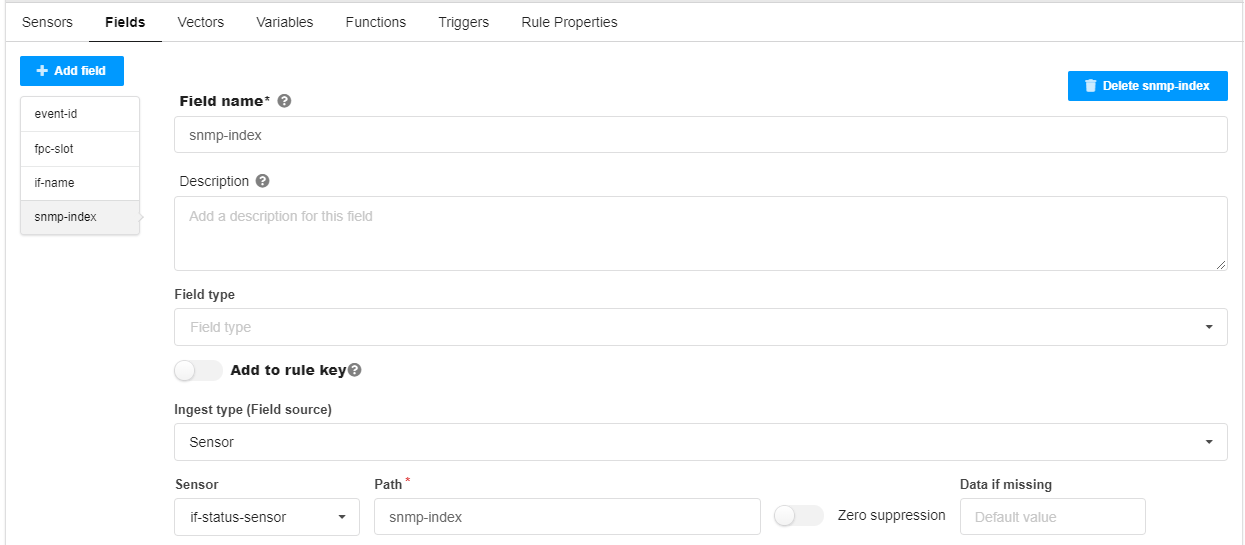
Click the + Add field button once more and
enter the following parameters to configure the fourth field, named snmp-index:
-
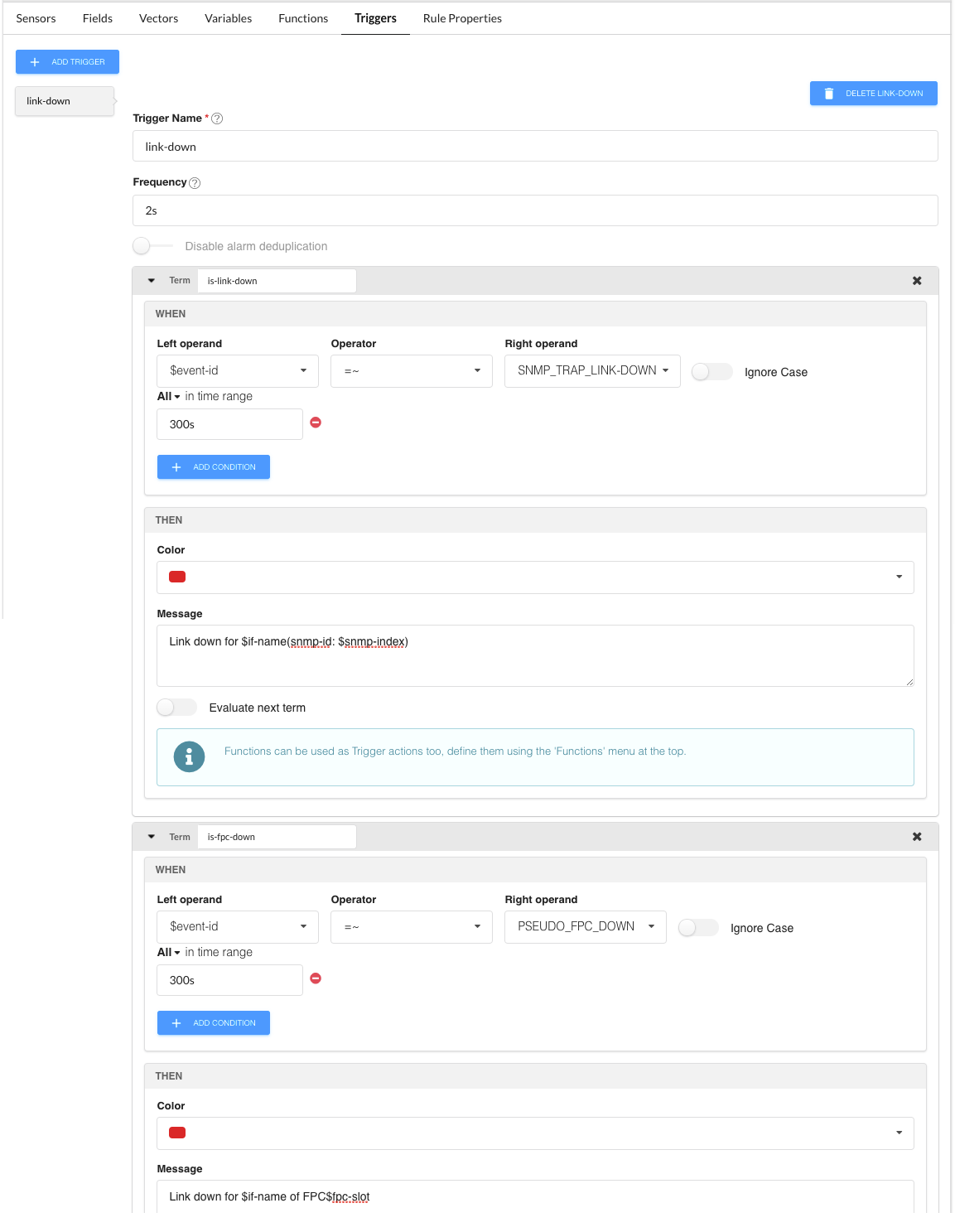
Now move to the Triggers tab, click the + Add trigger button, and enter the following parameters to configure a trigger
named link-down:
Usage Notes for the rule
-
Sensor tab
-
The sensor name if-status-sensor is user-defined.
-
The sensor type is syslog.
-
Pattern set check-interface-status - it is assumed that the pattern set is configured earlier.
-
If not set, the Maximum hold period defaults to 1s.
-
-
Fields tab
-
Four fields are defined; although the patterns are capturing more than four fields of data, this example defines four fields of interest here; these fields are used in the trigger settings.
-
The field names (event-id, fpc-slot, if-name, snmp-index) are user-defined.
-
path event-id - default field created by syslog ingest in the raw table; references the field from the pattern configuration.
-
path fpc - references the value from the filter used in the unstructured pattern configuration.
-
path if-name - refers to the interface name field from the pattern configuration. See Configure System Log Ingest.
-
Data if missing all interfaces - if the if-name value is not included in the syslog message, use the string value “all interfaces”.
-
-
path snmp-index - references the field from the pattern configuration.
-
-
Triggers tab
-
The trigger name link-down is user-defined.
-
frequency 2s - Paragon Insights checks for link-down syslog messages every 2 seconds
-
term is-link-down - when $event-id is like SNMP_TRAP_LINK_DOWN, in any syslog message in the last 300 seconds, make red and show the message Link down for $if-name(snmp-id: $snmp-index).
-
$event-id - $ indicates to reference the rule field event-id.
-
Link down for $if-name(snmp-id: $snmp-index) - for example, “Link down for ge-2/0/0 of FPC 2”.
-
$if-name - references the field value, i.e., the name of the interface in the syslog message.
-
-
term is-fpc-down - when $event-id is like PSEUDO_FPC_DOWN, in any syslog message in the last 300 seconds, make red and show the message Link down for $if-name of FPC$fpc-slot.
-
$event-id - $ indicates to reference the rule field event-id.
-
$if-name - “all interfaces”.
-
Link down for $if-name of FPC$fpc-slot - for example, “Link down for all interfaces of FPC 2”.
-
-