File Manager Left Pane
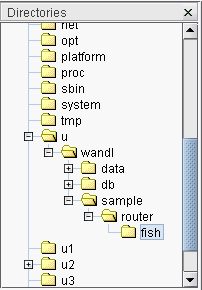
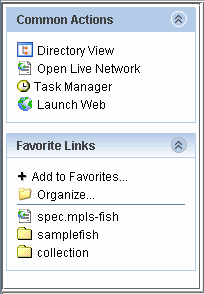
In the left pane of the File Manager, clicking the X in the upper-right corner of the Directory view opens the Common Actions and Favorite Links view. The Common Actions section contains shortcuts to various options. Click on Directory View to switch back to the directory tree view.
Favorite Links to Directories or Files
Under Favorite Links you can store links to commonly used directories or files. To add a link, right-click the file or directory from the right pane and select Add to Favorites. You can specify the name of the link in the subsequent dialog box.
Once the link has been added under the Favorite Links section, clicking on a link to a directory opens that directory in the right pane. Clicking a link to a file performs the Open command for that file.
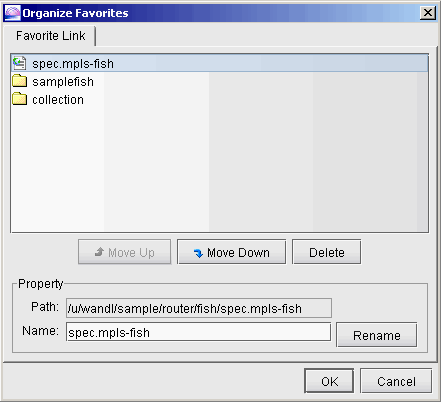
To rearrange, delete, or rename favorite links, click Organize... To rearrange the order, select an item and click Move Up or Move Down. To rename a link, type in a new name and then click Rename.