
Examine the P2MP LSP Tunnels
After open an existing specification file or creating a new specification file after configuration file import, you are ready to examine the P2MP LSP tunnels that are configured in your network. The tool allows you to easily examine the sub-LSPs that belong to a particular P2MP. In Paragon Planner, P2MP LSPs are appropriately and conveniently represented as multicast trees. For instance, in the following sample network, two P2MP LSPs have been defined in the network. Select the Tunnel layer button to switch into the Tunnel layer mode, to look at P2MP multicast trees rather than IP multicast trees. Go to NetInfo > Multicast > Multicast Tree to bring up the following window.
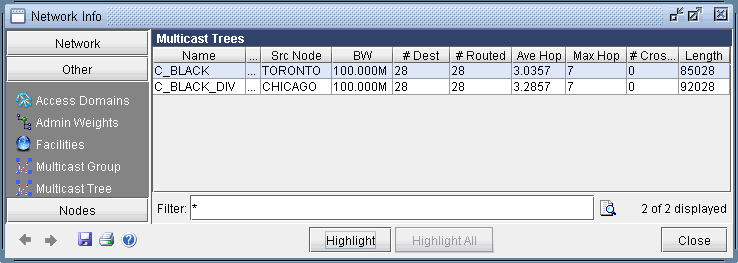
The window presents summary information – such as source node name and number of sub-LSPs -- for all of the P2MP LSPs that are currently configured in the network.
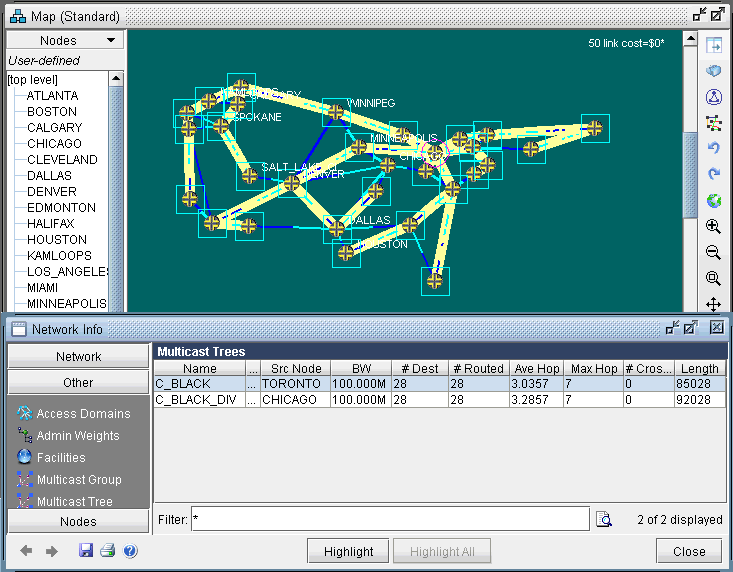
To show the sub-LSPs that comprise the P2MP LSP, select the particular row corresponding to the P2MP2 LSP of interest and then click on the Highlight button. As shown in the following figure, the P2MP LSP named C_BLACK is highlighted in the topology map. On the P2MP LSP tree, a circle is drawn around the node that represents the source node (the ingress LSR) of the tree, while boxes are drawn around the leaf nodes (the egress LSRs for the sub-LSPs) of the tree.
To see a list of all the sub-LSPs that belong to a particular P2MP LSP tunnel, select P2MP Tunnels from the right-click menu of the Multicast Trees window. Subsequently, the tunnels (the sub-LSPs) associated with the particular P2MP LSP tunnel will be displayed.

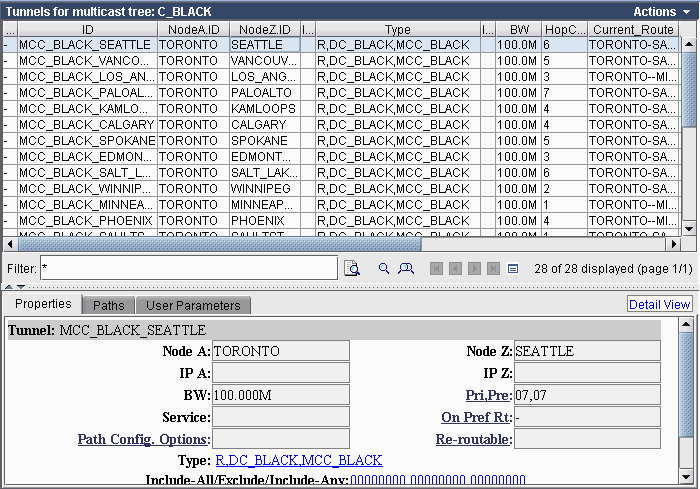
In this particular example, the sub-LSPs associated with the P2MP LSP called C_BLACK are displayed. Notice that in the type field, the sub-LSPs are marked with the MCC_BLACK. In Paragon Planner, the sub-LSPs for a particular P2MP LSP are marked with MC followed by the P2MP name in the type field.